布局
了解 Flutter 中常见的布局 widget。
学习如何使用 Scaffold、AppBar、Column 和 Row 等常见 widget 构建布局。
你将完成的内容
步骤
1
简介
简介
2
Scaffold 和 AppBar
Scaffold 和 AppBar
移动应用通常在顶部有一个称为「app bar」的栏,可以显示标题、导航控件和/或操作。
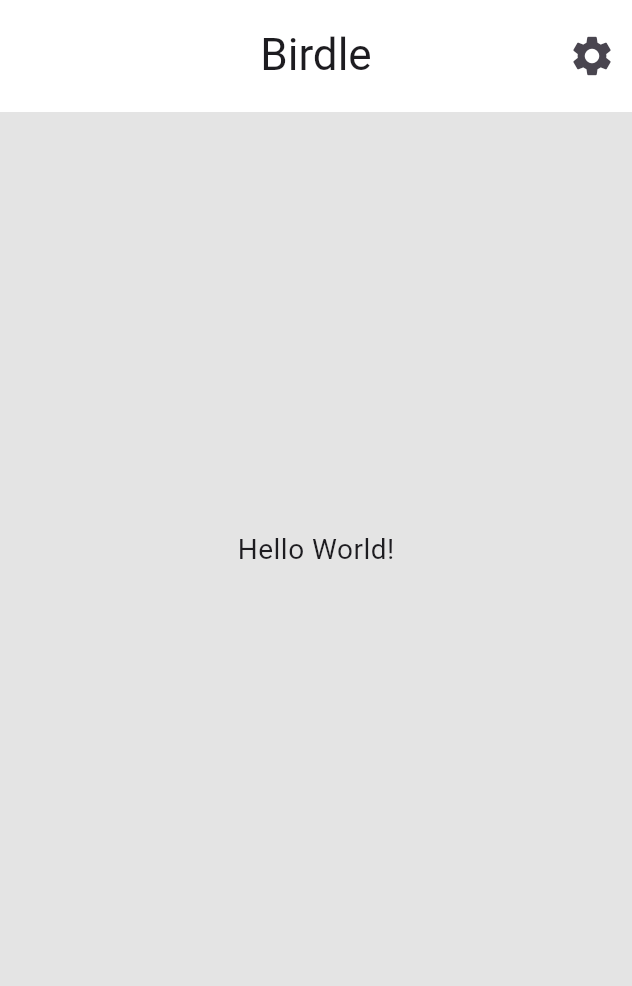
为应用添加 app bar 的最简单方式是使用两个 widget:
Scaffold 和 AppBar。
Scaffold 是一个便捷 widget,提供 Material 风格的页面布局,可轻松为应用页面添加 app bar、抽屉、导航栏等。AppBar 当然就是 app bar。
在 MainApp widget 的 build 方法中,向 Scaffold widget 添加一个 AppBar。以下代码使用了一个额外的布局 widget:Align。这会将标题定位到左侧,默认情况下标题会居中。
Text widget 本身包含标题。
直接传入枚举或静态属性(如 Alignment.centerLeft)也可以使用 Dart 的点简写 语法缩短,你可以在官方 Dart 文档和 Flutter 简写概览 中了解更多。
class MainApp extends StatelessWidget {
const MainApp({super.key});
@override
Widget build(BuildContext context) {
return MaterialApp(
home: Scaffold(
appBar: AppBar(
title: const Align(
alignment: Alignment.centerLeft,
child: Text('Birdle'),
),
),
body: const Center(
child: Tile('A', HitType.hit),
),
),
);
}
}
更新后的 widget 树
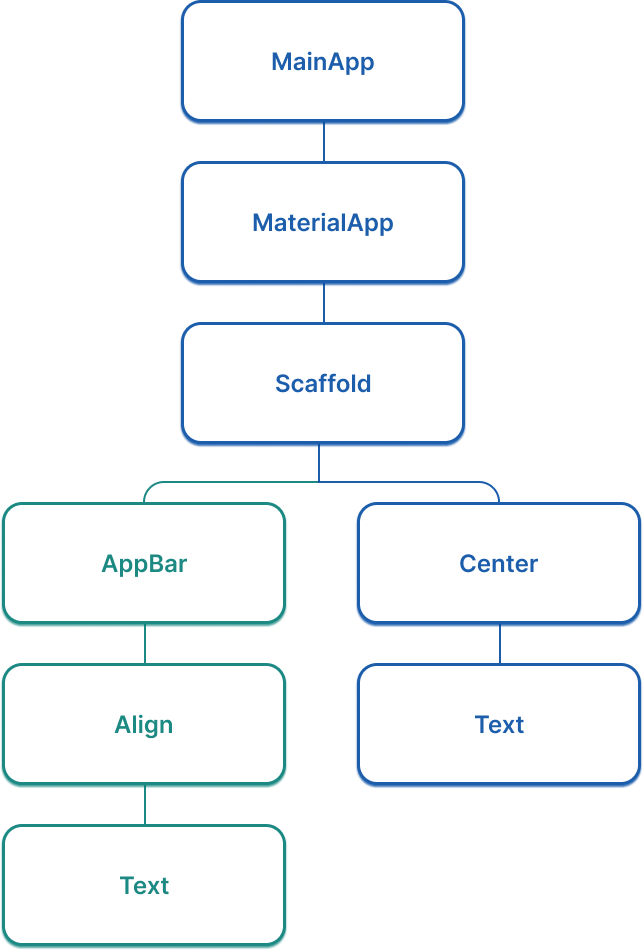
#随着应用增长,关注应用的 widget 树变得越来越重要。此时,widget 树中首次出现「分支」,现在它看起来像下图:
3
为游戏页面布局创建 widget
为游戏页面布局创建 widget
将以下新 widget(名为 GamePage)的代码添加到你的 main.dart 文件中。此 widget 最终将显示游戏本身所需的 UI 元素。
class GamePage extends StatelessWidget {
GamePage({super.key});
// This object is part of the game.dart file.
// It manages wordle logic, and is outside the scope of this tutorial.
final Game _game = Game();
@override
Widget build(BuildContext context) {
// TODO: Replace with screen contents
return Container();
}
}
然后更新 MainApp widget,创建并显示 GamePage widget,而不是「Hello World!」。
class MainApp extends StatelessWidget {
const MainApp({super.key});
@override
Widget build(BuildContext context) {
return MaterialApp(
home: Scaffold(
appBar: AppBar(
title: const Align(
alignment: Alignment.centerLeft,
child: Text('Birdle'),
),
),
body: Center(child: GamePage()),
),
);
}
}
4
使用 Column 和 Row 排列 widget
使用 Column 和 Row 排列 widget
GamePage 布局包含显示用户猜测的方块网格。
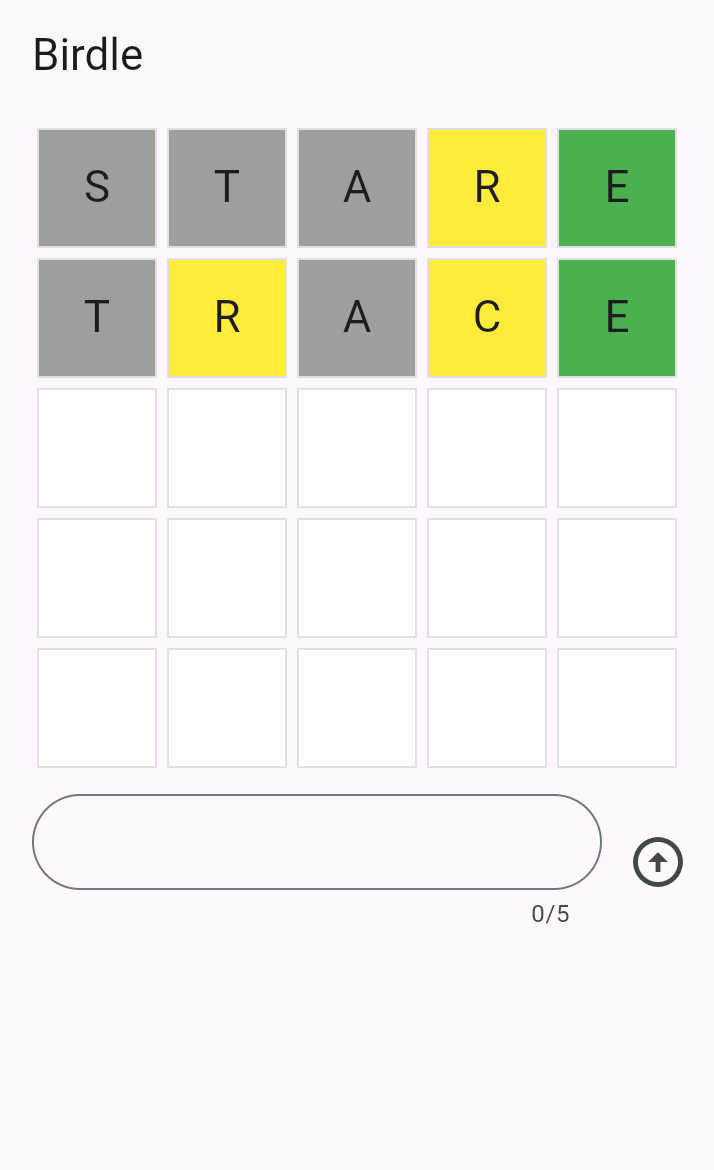
有多种方式可以构建此布局。最简单的是使用 Column 和 Row widget。每行包含五个方块,代表猜测中的五个字母,共五行。因此你需要一个 Column,其 children 为五个 Row widget,每行包含五个 children。
首先,将 GamePage.build 中的 Container 替换为
Padding widget 与 Column widget 组合的 widget:
class GamePage extends StatelessWidget {
GamePage({super.key});
// This manages game logic, and is out of scope for this lesson.
final Game _game = Game();
@override
Widget build(BuildContext context) {
return Padding(
padding: const EdgeInsets.all(8.0),
child: Column(
spacing: 5.0,
children: [
// Add children next.
],
),
);
}
}
spacing 属性会在主轴上的每个元素之间放置 5 像素间距。
在 Column.children 中,对 _game.guesses 列表中的每个元素,添加一个 Row widget 作为 child。
class GamePage extends StatelessWidget {
GamePage({super.key});
// This manages game logic, and is out of scope for this lesson.
final Game _game = Game();
@override
Widget build(BuildContext context) {
return Padding(
padding: const EdgeInsets.all(8.0),
child: Column(
spacing: 5.0,
children: [
for (final guess in _game.guesses)
Row(
spacing: 5.0,
children: [
// We'll add the tiles here later.
],
),
],
),
);
}
}
children 列表中的 for 循环称为 collection for element,这是一种 Dart 语法,让你在运行时构建集合时迭代地向集合添加项。这种语法糖让你更容易处理 widget 集合,为以下内容提供声明式替代方案:
[..._game.guesses.map((guess) => Row(/* ... */))],
此处,它向 column 添加五个 Row widget,每个对应 Game 对象上的一次猜测。
更新后的 widget 树
#本课中,此应用的 widget 树已显著扩展。现在,它更像下面的(节选)图:
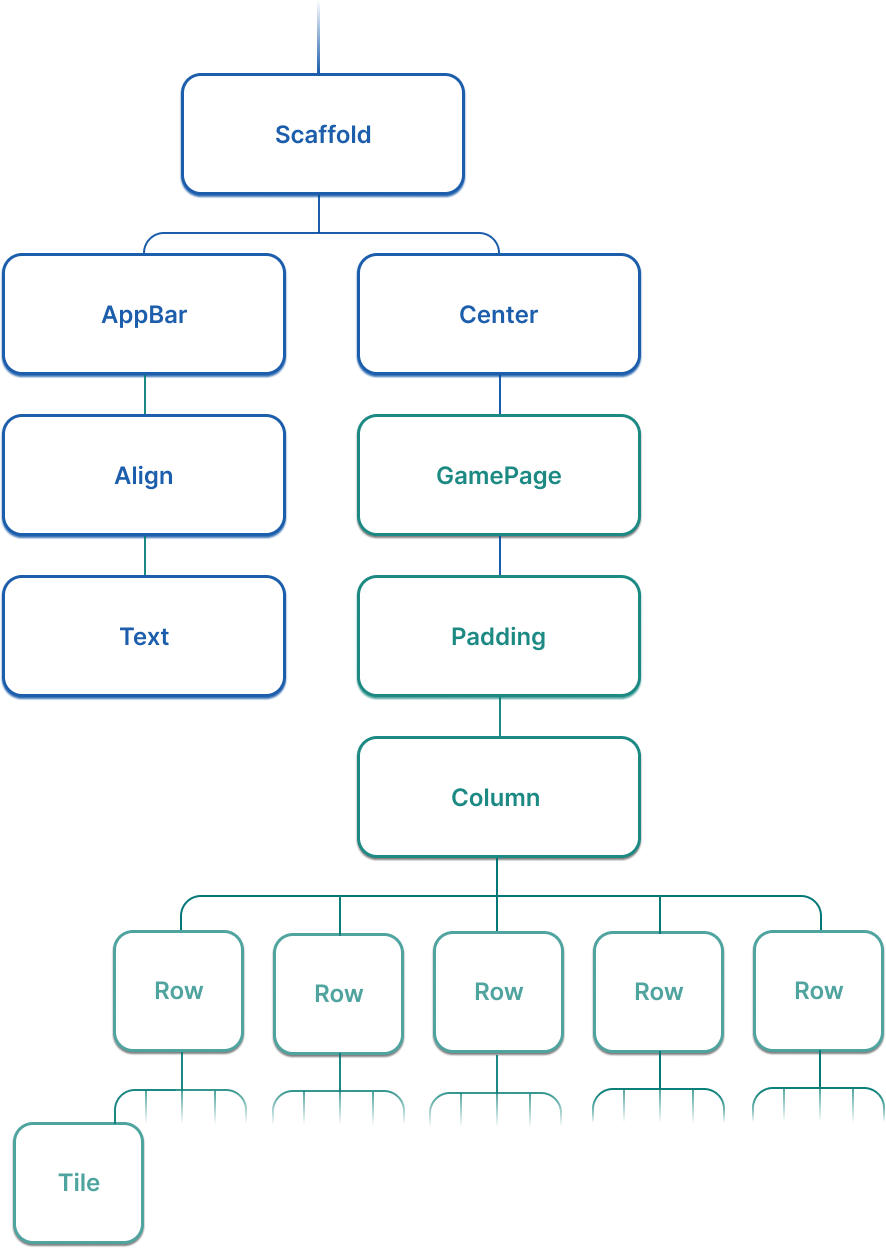
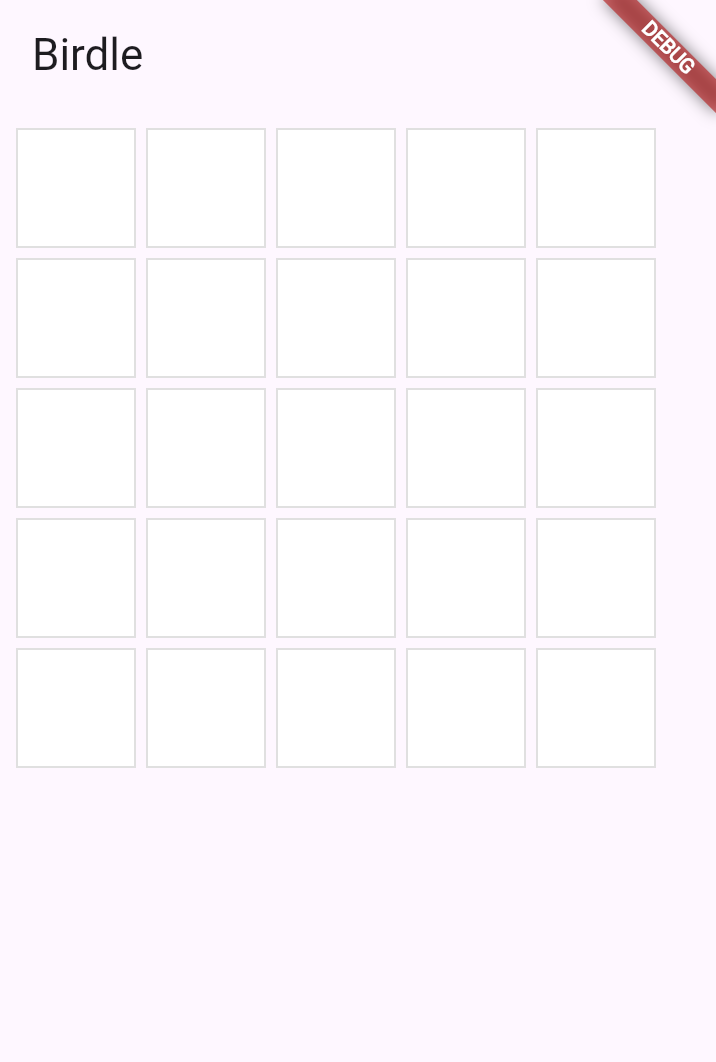
热重载应用后,你应看到 5x5 的白色方块网格。
5
回顾
回顾
你完成的内容
以下是你本课构建与学习内容的摘要。使用 Scaffold 和 AppBar 构建应用结构
你使用 Scaffold 提供 Material 风格的页面布局,使用 AppBar 在应用顶部添加标题栏。这些高级 widget 为你的应用提供标准且精致的结构。
使用 Column 和 Row 排列 widget
Column 垂直排列 widget,Row 水平排列 widget。这些是你在 Flutter 中会经常使用的基本布局 widget。 spacing
属性在 children 之间添加一致的间距。
根据数据动态生成 widget
你使用 collection for element 从列表构建 widget。这种声明式方法让你构建的用户界面能自动并在视觉上反映你的数据,这是 Flutter 开发的核心模式。
构建了游戏棋盘网格
通过在 Column 内嵌套 Row widget 并使用嵌套循环,你创建了 5x5 的 Tile widget 网格。你的应用现在显示完整的游戏棋盘布局!
6
自测
自测
布局测验
1 / 2-
Column 用于滚动内容;Row 用于静态内容。
不正确。
Column 和 Row 都用于布局,而非滚动。滚动请使用 ListView 或 SingleChildScrollView。
-
Column 垂直排列 children;Row 水平排列 children。
正确!
Column 沿垂直轴布局其 children,Row 使用水平轴。
-
Column 可以有无限个 children;Row 限制为两个。
不正确。
两种 widget 都可以有任意数量的 children。
-
Column 需要 Scaffold 父级;Row 不需要。
不正确。
两种 widget 都不需要 Scaffold 作为父级。
-
仅为页面提供背景色。
不正确。
Scaffold 提供的远不止这些,包括 app bar、抽屉等的结构。
-
Material 风格的页面布局,带有 app bar、body、drawer 等插槽。
正确!
Scaffold 是提供标准 Material 页面结构的便捷 widget。
-
在不同页面之间导航的方式。
不正确。
导航由 Navigator 处理,而非 Scaffold。
-
页面的自动状态管理。
不正确。
Scaffold 不管理状态;你需要使用 StatefulWidget 或状态管理方案。
除非另有说明,本文档之所提及适用于 Flutter 3.47.2 版本。本页面最后更新时间:2026-08-19。查看文档源码 或者 为本页面内容提出建议。