使用操作和快捷方式
如何在 Flutter 应用程序中使用操作和快捷方式。
本篇文档说明如何将物理键盘事件绑定到用户界面中的操作。例如,若要在应用中定义键盘快捷方式,本篇文档将适合你。
概览
#GUI 应用要能完成任何事,都需要操作:用户希望告诉应用 做 某件事。操作通常是直接执行该操作的简单函数(例如设置值或保存文件)。然而在较大应用中情况更复杂:调用操作的代码与操作本身的代码可能需要在不同位置。快捷方式(按键绑定)可能需要在不了解其所调用操作的层级上定义。
这时 Flutter 的操作与快捷方式系统就派上用场。它允许开发者定义履行绑定到它们的 intent 的操作。在此语境下,intent 是用户希望执行的通用操作,Intent
类实例在 Flutter 中表示这些用户 intent。
Intent 可以是通用目的,在不同上下文中由不同操作履行。
Action
可以是简单回调(如 CallbackAction
的情况),也可以是更复杂、与整套撤销/重做架构(例如)或其他逻辑集成的实现。
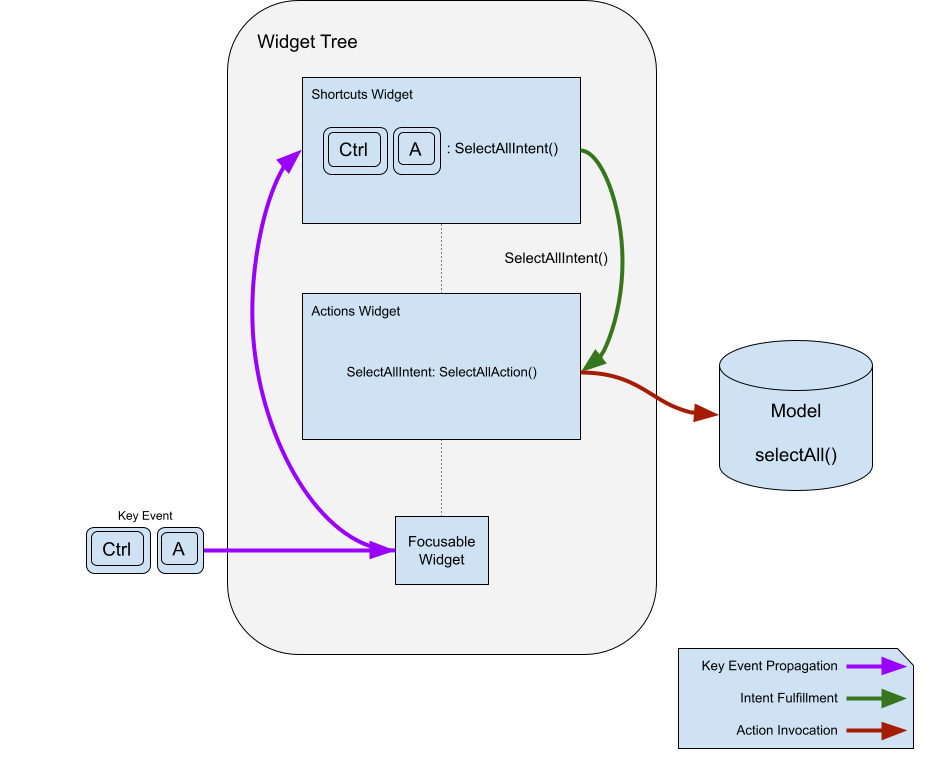
Shortcuts 是按下某个键或组合键时激活的按键绑定。键组合与其绑定的 intent 存放在表中。当 Shortcuts widget 调用它们时,会将匹配的 intent 发送给操作子系统以履行。
为说明操作与快捷方式中的概念,本文创建一个简单应用,让用户通过按钮和快捷方式在文本字段中选择并复制文本。
为何将 Action 与 Intent 分离?
#你可能会想:为何不直接将键组合映射到操作?为何要有 intent?这是因为将按键映射定义所在位置(通常在高层次)与操作定义所在位置(通常在低层次)分离很有用;而且重要的是,单个键组合可以映射到应用中的预期操作,并自动适配当前焦点上下文中履行该预期操作的操作。
例如,Flutter 有 ActivateIntent,将每种控件映射到对应的 ActivateAction 版本(并执行激活该控件的代码)。这段代码通常需要相当私有的访问权限才能完成工作。若没有 Intent 提供的额外间接层,就必须把操作定义提升到定义 Shortcuts widget 的实例可见的位置,导致快捷方式对要调用哪个操作了解过多,并需要访问或提供它本不必拥有或需要的状态。这使你的代码能将两方面关注点更独立地分离。
Intent 配置操作,使同一操作可服务多种用途。例如 DirectionalFocusIntent 接收移动焦点的方向,让 DirectionalFocusAction
知道向哪个方向移动焦点。请注意:不要在 Intent 中传递适用于 Action 所有调用的状态:这类状态应传给 Action 本身的构造函数,以免 Intent 需要了解过多信息。
为何不使用回调?
#
你也可能想:为何不直接用回调代替 Action 对象?主要原因是操作通过实现 isEnabled 来决定是否启用很有用。此外,将按键绑定及其实现放在不同位置往往很有帮助。
若你只需要回调而不需要 Actions 和 Shortcuts 的灵活性,可以使用 CallbackShortcuts
widget:
@override
Widget build(BuildContext context) {
  return CallbackShortcuts(
    bindings: <ShortcutActivator, VoidCallback>{
      const SingleActivator(LogicalKeyboardKey.arrowUp): () {
        setState(() => count = count + 1);
      },
      const SingleActivator(LogicalKeyboardKey.arrowDown): () {
        setState(() => count = count - 1);
      },
    },
    child: Focus(
      autofocus: true,
      child: Column(
        children: <Widget>[
          const Text('Press the up arrow key to add to the counter'),
          const Text('Press the down arrow key to subtract from the counter'),
          Text('count: $count'),
        ],
      ),
    ),
  );
}
Shortcuts
#
如下文所示,操作本身很有用,但最常见用法是将它们绑定到键盘快捷方式。这正是 Shortcuts widget 的用途。
它插入 widget 层次结构,用于定义表示用户按下该键组合时意图的键组合。要将键组合的预期目的转换为具体操作,需使用 Actions widget 将 Intent 映射到 Action。例如,你可以定义 SelectAllIntent,并将其绑定到你自己的 SelectAllAction 或 CanvasSelectAllAction,仅凭这一键绑定,系统会根据应用哪一部分拥有焦点而调用其中之一。下面说明键绑定部分如何工作:
@override
Widget build(BuildContext context) {
  return Shortcuts(
    shortcuts: <LogicalKeySet, Intent>{
      LogicalKeySet(LogicalKeyboardKey.control, LogicalKeyboardKey.keyA):
          const SelectAllIntent(),
    },
    child: Actions(
      dispatcher: LoggingActionDispatcher(),
      actions: <Type, Action<Intent>>{
        SelectAllIntent: SelectAllAction(model),
      },
      child: Builder(
        builder: (context) => TextButton(
          onPressed: Actions.handler<SelectAllIntent>(
            context,
            const SelectAllIntent(),
          ),
          child: const Text('SELECT ALL'),
        ),
      ),
    ),
  );
}
传给 Shortcuts widget 的 map 将 LogicalKeySet(或 ShortcutActivator,见下方说明)映射到
Intent 实例。逻辑键集定义一个或多个键,intent 表示按键的预期目的。
Shortcuts widget 在 map 中查找按键,找到 Intent 实例后交给操作的 invoke()
方法。
ShortcutManager
#
快捷方式管理器是比 Shortcuts widget 生命周期更长的对象,在收到按键事件时传递它们。它包含决定如何处理按键的逻辑、沿树向上查找其他快捷方式映射的逻辑,并维护键组合到 intent 的 map。
虽然 ShortcutManager 的默认行为通常符合需求,但 Shortcuts widget 可接收你可子类化以自定义功能的 ShortcutManager。
例如,若要记录 Shortcuts widget 处理的每个键,可以创建 LoggingShortcutManager:
class LoggingShortcutManager extends ShortcutManager {
  @override
  KeyEventResult handleKeypress(BuildContext context, KeyEvent event) {
    final KeyEventResult result = super.handleKeypress(context, event);
    if (result == KeyEventResult.handled) {
      print('Handled shortcut $event in $context');
    }
    return result;
  }
}
现在,每次 Shortcuts widget 处理快捷方式时,都会打印按键事件和相关 context。
Actions
#
Actions 允许定义应用通过 Intent 调用即可执行的操作。操作可启用或禁用,并接收调用它们的 intent 实例作为参数,以便由 intent 配置。
定义 Actions
#
Action 的最简形式是带有 invoke() 方法的 Action<Intent> 子类。下面是一个在提供的 model 上调用函数的简单操作:
class SelectAllAction extends Action<SelectAllIntent> {
SelectAllAction(this.model);
final Model model;
@override
void invoke(covariant SelectAllIntent intent) => model.selectAll();
}
或者,若创建新类太麻烦,可使用 CallbackAction:
CallbackAction(onInvoke: (intent) => model.selectAll());
有了操作后,使用 Actions
widget 将其加入应用,该 widget 接收 Intent 类型到 Action 的 map:
@override
Widget build(BuildContext context) {
  return Actions(
    actions: <Type, Action<Intent>>{SelectAllIntent: SelectAllAction(model)},
    child: child,
  );
}
Shortcuts widget 使用 Focus widget 的 context 和 Actions.invoke 查找要调用的操作。若第一个遇到的 Actions widget 中没有匹配的 intent 类型,会继续考虑上层祖先 Actions
widget,直至到达 widget 树根或找到匹配的 intent 类型并调用对应操作。
调用 Actions
#
操作子系统有多种调用操作的方式。最常见的是上一节介绍的 Shortcuts widget,但也有其他方式查询操作子系统并调用操作。可以调用未绑定到按键的操作。
例如,要查找与 intent 关联的操作,可以使用:
Action<SelectAllIntent>? selectAll = Actions.maybeFind<SelectAllIntent>(
  context,
);
若在指定 context 中有与 SelectAllIntent 类型关联的 Action,则返回该 Action;否则返回 null。若关联的 Action 应始终存在,请使用 find 而非 maybeFind,找不到匹配的 Intent 类型时会抛出异常。
要调用操作(若存在),请调用:
Object? result;
if (selectAll != null) {
  result = Actions.of(context)
      .invokeAction(selectAll, const SelectAllIntent());
}
也可通过以下方式合并为一次调用:
Object? result = Actions.maybeInvoke<SelectAllIntent>(
  context,
  const SelectAllIntent(),
);
有时你想在按下按钮或其他控件时调用操作。可使用 Actions.handler 函数。若 intent 映射到已启用的操作,Actions.handler 会创建处理闭包;若无映射则返回 null。这样在上下文中没有匹配的已启用操作时,按钮可被禁用。
@override
Widget build(BuildContext context) {
  return Actions(
    actions: <Type, Action<Intent>>{SelectAllIntent: SelectAllAction(model)},
    child: Builder(
      builder: (context) => TextButton(
        onPressed: Actions.handler<SelectAllIntent>(
          context,
          SelectAllIntent(controller: controller),
        ),
        child: const Text('SELECT ALL'),
      ),
    ),
  );
}
Actions widget 仅在 isEnabled(Intent intent) 返回 true 时调用操作,允许操作决定调度器是否应考虑调用它。若操作未启用,则不会被调用,且框架会在此处停止搜索匹配操作。
上一示例使用 Builder,因为 Actions.handler 和 Actions.invoke(等)仅在提供的 context
中查找操作;若示例传入 build 函数得到的 context,框架会从 当前 widget 之上开始查找。使用 Builder 可使框架找到同一 build 函数中定义的操作。
你可在不需要 BuildContext 的情况下调用操作,但由于 Actions widget 需要 context 来查找要调用的已启用操作,你需要提供 context:创建自己的 Action 实例,或通过 Actions.find 在合适的 context 中查找。
要调用操作,将操作传给 ActionDispatcher 的 invoke 方法——可以是自建的,也可通过 Actions.of(context) 从现有 Actions widget 获取。调用 invoke 前检查操作是否已启用。当然也可直接在操作上调用 invoke 并传入 Intent,但这样会放弃操作调度器可能提供的服务(如日志、撤销/重做等)。
Action 调度器
#多数情况下,你只需调用操作、让它完成工作即可。但有时你可能想记录已执行的操作。
此时可将默认 ActionDispatcher 替换为自定义调度器。将 ActionDispatcher 传给 Actions widget,它会调用其下未自行设置调度器的任何 Actions widget 中的操作。
Actions 调用操作时首先查找 ActionDispatcher 并将操作交给它调用;若没有则创建默认 ActionDispatcher 直接调用操作。
若需要所有已调用操作的日志,可创建自己的 LoggingActionDispatcher:
class LoggingActionDispatcher extends ActionDispatcher {
@override
Object? invokeAction(
covariant Action<Intent> action,
covariant Intent intent, [
BuildContext? context,
]) {
print('Action invoked: $action($intent) from $context');
super.invokeAction(action, intent, context);
return null;
}
@override
(bool, Object?) invokeActionIfEnabled(
covariant Action<Intent> action,
covariant Intent intent, [
BuildContext? context,
]) {
print('Action invoked: $action($intent) from $context');
return super.invokeActionIfEnabled(action, intent, context);
}
}
然后将它传给顶层 Actions widget:
@override
Widget build(BuildContext context) {
  return Actions(
    dispatcher: LoggingActionDispatcher(),
    actions: <Type, Action<Intent>>{SelectAllIntent: SelectAllAction(model)},
    child: Builder(
      builder: (context) => TextButton(
        onPressed: Actions.handler<SelectAllIntent>(
          context,
          const SelectAllIntent(),
        ),
        child: const Text('SELECT ALL'),
      ),
    ),
  );
}
执行时会记录每个操作,例如:
flutter: Action invoked: SelectAllAction#906fc(SelectAllIntent#a98e3) from Builder(dependencies: _[ActionsMarker])
综合示例
#
Actions 与 Shortcuts 的组合很强大:你可以在 widget 层级定义映射到具体操作的通用 intent。下面是一个说明上文概念的简单应用:应用创建一个文本字段,旁边有「全选」和「复制到剪贴板」按钮;按钮通过调用操作完成工作;所有被调用的操作和快捷方式都会记录日志。
import 'package:flutter/material.dart';
import 'package:flutter/services.dart';

/// A text field that also has buttons to select all the text and copy the
/// selected text to the clipboard.
class CopyableTextField extends StatefulWidget {
  const CopyableTextField({super.key, required this.title});

  final String title;

  @override
  State<CopyableTextField> createState() => _CopyableTextFieldState();
}

class _CopyableTextFieldState extends State<CopyableTextField> {
  late final TextEditingController controller = TextEditingController();
  late final FocusNode focusNode = FocusNode();

  @override
  void dispose() {
    controller.dispose();
    focusNode.dispose();
    super.dispose();
  }

  @override
  Widget build(BuildContext context) {
    return Actions(
      dispatcher: LoggingActionDispatcher(),
      actions: <Type, Action<Intent>>{
        ClearIntent: ClearAction(controller),
        CopyIntent: CopyAction(controller),
        SelectAllIntent: SelectAllAction(controller, focusNode),
      },
      child: Builder(
        builder: (context) {
          return Scaffold(
            body: Center(
              child: Row(
                children: <Widget>[
                  const Spacer(),
                  Expanded(
                    child: TextField(
                      controller: controller,
                      focusNode: focusNode,
                    ),
                  ),
                  IconButton(
                    icon: const Icon(Icons.copy),
                    onPressed: Actions.handler<CopyIntent>(
                      context,
                      const CopyIntent(),
                    ),
                  ),
                  IconButton(
                    icon: const Icon(Icons.select_all),
                    onPressed: Actions.handler<SelectAllIntent>(
                      context,
                      const SelectAllIntent(),
                    ),
                  ),
                  const Spacer(),
                ],
              ),
            ),
          );
        },
      ),
    );
  }
}

/// A ShortcutManager that logs all keys that it handles.
class LoggingShortcutManager extends ShortcutManager {
  @override
  KeyEventResult handleKeypress(BuildContext context, KeyEvent event) {
    final KeyEventResult result = super.handleKeypress(context, event);
    if (result == KeyEventResult.handled) {
      print('Handled shortcut $event in $context');
    }
    return result;
  }
}

/// An ActionDispatcher that logs all the actions that it invokes.
class LoggingActionDispatcher extends ActionDispatcher {
  @override
  Object? invokeAction(
    covariant Action<Intent> action,
    covariant Intent intent, [
    BuildContext? context,
  ]) {
    print('Action invoked: $action($intent) from $context');
    super.invokeAction(action, intent, context);

    return null;
  }
}

/// An intent that is bound to ClearAction in order to clear its
/// TextEditingController.
class ClearIntent extends Intent {
  const ClearIntent();
}

/// An action that is bound to ClearIntent that clears its
/// TextEditingController.
class ClearAction extends Action<ClearIntent> {
  ClearAction(this.controller);

  final TextEditingController controller;

  @override
  Object? invoke(covariant ClearIntent intent) {
    controller.clear();

    return null;
  }
}

/// An intent that is bound to CopyAction to copy from its
/// TextEditingController.
class CopyIntent extends Intent {
  const CopyIntent();
}

/// An action that is bound to CopyIntent that copies the text in its
/// TextEditingController to the clipboard.
class CopyAction extends Action<CopyIntent> {
  CopyAction(this.controller);

  final TextEditingController controller;

  @override
  Object? invoke(covariant CopyIntent intent) {
    final String selectedString = controller.text.substring(
      controller.selection.baseOffset,
      controller.selection.extentOffset,
    );
    Clipboard.setData(ClipboardData(text: selectedString));

    return null;
  }
}

/// An intent that is bound to SelectAllAction to select all the text in its
/// controller.
class SelectAllIntent extends Intent {
  const SelectAllIntent();
}

/// An action that is bound to SelectAllAction that selects all text in its
/// TextEditingController.
class SelectAllAction extends Action<SelectAllIntent> {
  SelectAllAction(this.controller, this.focusNode);

  final TextEditingController controller;
  final FocusNode focusNode;

  @override
  Object? invoke(covariant SelectAllIntent intent) {
    controller.selection = controller.selection.copyWith(
      baseOffset: 0,
      extentOffset: controller.text.length,
      affinity: controller.selection.affinity,
    );

    focusNode.requestFocus();

    return null;
  }
}

/// The top level application class.
///
/// Shortcuts defined here are in effect for the whole app,
/// although different widgets may fulfill them differently.
class MyApp extends StatelessWidget {
  const MyApp({super.key});

  static const String title = 'Shortcuts and Actions Demo';

  @override
  Widget build(BuildContext context) {
    return MaterialApp(
      title: title,
      theme: ThemeData(
        colorScheme: ColorScheme.fromSeed(seedColor: Colors.deepPurple),
      ),
      home: Shortcuts(
        shortcuts: <LogicalKeySet, Intent>{
          LogicalKeySet(LogicalKeyboardKey.escape): const ClearIntent(),
          LogicalKeySet(LogicalKeyboardKey.control, LogicalKeyboardKey.keyC):
              const CopyIntent(),
          LogicalKeySet(LogicalKeyboardKey.control, LogicalKeyboardKey.keyA):
              const SelectAllIntent(),
        },
        child: const CopyableTextField(title: title),
      ),
    );
  }
}

void main() => runApp(const MyApp());除非另有说明,本文档之所提及适用于 Flutter 3.47.2 版本。本页面最后更新时间:2026-08-24。查看文档源码 或者 为本页面内容提出建议。