# 交织动画
> 如何在 Flutter 中编写一个交织动画。
:::secondary 你将学到什么
* A staggered animation consists of sequential or overlapping
animations.
一个交织动画由一组序列动画或重叠动画所组成。
* To create a staggered animation, use multiple `Animation` objects.
创建一个交织动画,要用到多个动画对象
* One `AnimationController` controls all of the `Animation`s.
一个 AnimationController 控制所有动画。
* Each `Animation` object specifies the animation during an `Interval`.
每个动画对象在一个间隔时间内指定一个动画。
* For each property being animated, create a `Tween`.
为每一个要执行动画的属性创建一个 Tween
:::
:::tip 术语
If the concept of tweens or tweening is new to you, see the
[Animations in Flutter tutorial][].
如果 tweens 或 tweening 的概念对你来说比较新,请看
[Flutter 指南中的 Animation][Animations in Flutter tutorial]。
:::
Staggered animations are a straightforward concept: visual changes
happen as a series of operations, rather than all at once.
The animation might be purely sequential, with one change occurring after
the next, or it might partially or completely overlap. It might also
have gaps, where no changes occur.
交织动画是一个简单的概念:视觉变化是随着一系列的动作发生,而不是一次性的动作。
动画可能是纯粹顺序的,一个改变随着一个改变发生,
动画也可能是部分或者全部重叠的。动画也可能有间隙,没有变化发生。
This guide shows how to build a staggered animation in Flutter.
本指南展示如何在Flutter中构建交织动画。
:::secondary 例子
This guide explains the basic_staggered_animation example.
You can also refer to a more complex example,
staggered_pic_selection.
本指南主要介绍 basic_staggered_animation 示例,
你也可参考更复杂的例子:staggered_pic_selection。
[basic_staggered_animation][]
Shows a series of sequential and overlapping animations
of a single widget. Tapping the screen begins an animation
that changes opacity, size, shape, color, and padding.
[basic_staggered_animation][]
展示一个单独的 widget 的一系列连续和重叠动画。
轻触屏幕开始一个动画,改变不透明度,大小,形状、颜色和填充。
[staggered_pic_selection][]
Shows deleting an image from a list of images displayed
in one of three sizes. This example uses two
[animation controllers][]: one for image selection/deselection,
and one for image deletion. The selection/deselection
animation is staggered. (To see this effect,
you might need to increase the `timeDilation` value.)
Select one of the largest images—it shrinks as it
displays a checkmark inside a blue circle.
Next, select one of the smallest images—the
large image expands as the checkmark disappears.
Before the large image has finished expanding,
the small image shrinks to display its checkmark.
This staggered behavior is similar to what you might
see in Google Photos.
[staggered_pic_selection][]
展示从一个以三种大小显示的图像列表中删除一个图像。
这个例子使用了两个 [动画控制器][animation controllers]:
一个用于控制图像的选择/取消选择, 一个用于控制删除图像.
选择/取消选择的动画是交织动画。
(想看到这种效果,你可能需要增加 `timeDilation` 的数值。)
选择最大的一个图像,它会收缩同时在一个在蓝色圆圈里显示一个对勾,
然后,选择一个最小的图像,最大的图像会展开同时对勾消失。
在最大的图像结束展开前,最小的图像会收缩并显示对勾。
这个交织行为比较类似于你在 Google Photos 中看到的效果。
:::
The following video demonstrates the animation performed by
basic_staggered_animation:
以下视频演示了 basic_staggered_animation 所执行的动画:
In the video, you see the following animation of a single widget,
which begins as a bordered blue square with slightly rounded corners.
The square runs through changes in the following order:
在这个视频中,你可以看到一个独立的 widget 的以下动画,
以一个带边框的略微有圆角的蓝色矩形开始,
这个矩形会按照以下顺序变化:
1. Fades in
淡出
1. Widens
扩大
1. Becomes taller while moving upwards
向上移动同时变得更高
1. Transforms into a bordered circle
变为一个有边框的圆圈
1. Changes color to orange
颜色变为橙色
After running forward, the animation runs in reverse.
向前运行之后, 动画将反向运行。
:::secondary 刚接触Flutter?
This page assumes you know how to create a layout using Flutter's
widgets. For more information, see [Building Layouts in Flutter][].
本文假定你已经知道如何使用 Flutter 的 widgets 创建一个布局。
更多信息请看 [Flutter 中的布局][Building Layouts in Flutter].
:::
## Basic structure of a staggered animation
## 一个交织动画的基础结构
:::secondary 重点是什么?
* All of the animations are driven by the same
[`AnimationController`][].
所有的动画都是由相同同样的 [`AnimationController`][] 驱动。
* Regardless of how long the animation lasts in real time,
the controller's values must be between 0.0 and 1.0, inclusive.
无论动画在真实时间中播放多长时间,控制器的值必须在 0.0 和 1.0 之间,包括 0.0 和 1.0。
* Each animation has an [`Interval`][]
between 0.0 and 1.0, inclusive.
每个动画都有一个 [`Interval`][],
值必须在 0.0 和 1.0 之间,包括 0.0 和 1.0。
* For each property that animates in an interval, create a
[`Tween`][]. The `Tween` specifies the start and end
values for that property.
对于每一个间隔内产生动画的属性,创建一个 [`Tween`][]。
`Tween` 可以指定该属性的开始值和结束值。
* The `Tween` produces an [`Animation`][]
object that is managed by the controller.
`Tween` 产生一个由控制器管理的 [`Animation`][] 对象。
:::
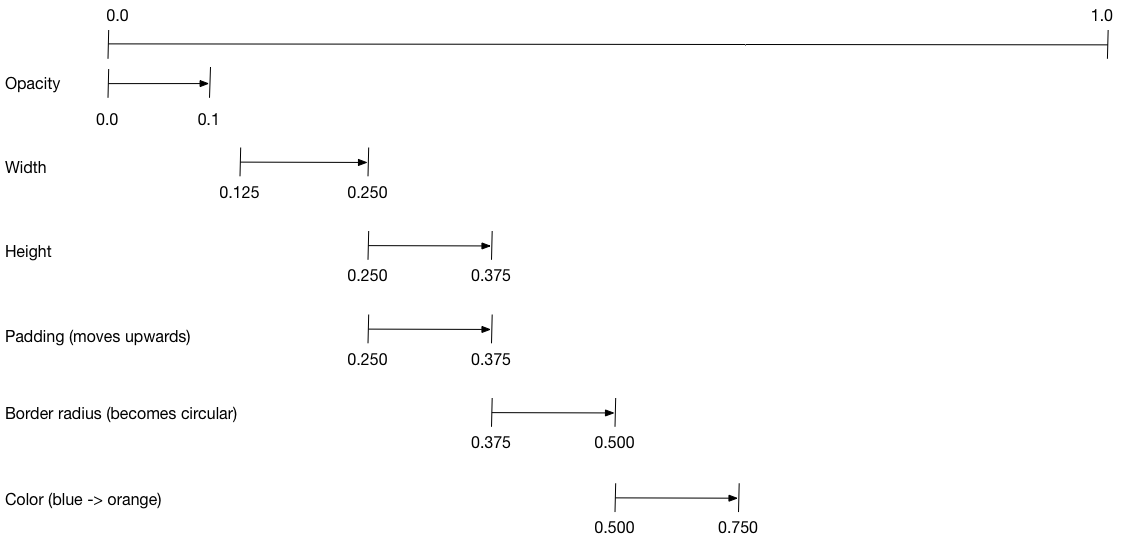
The following diagram shows the `Interval`s used in the
[basic_staggered_animation][] example.
You might notice the following characteristics:
下图展示了在 [basic_staggered_animation][] 使用间隔的例子。
你会注意到有以下特点:
* The opacity changes during the first 10% of the timeline.
透明度在时间轴的前 10% 发生变化。
* A tiny gap occurs between the change in opacity,
and the change in width.
透明度的变化和宽度的变化之间有一个很小的间隔。
* Nothing animates during the last 25% of the timeline.
在时间轴的最后 25% 没有动画。
* Increasing the padding makes the widget appear to rise upward.
增加填充使 widget 看起来向上上升。
* Increasing the border radius to 0.5,
transforms the square with rounded corners into a circle.
将圆角半径增加到 0.5,将圆角正方形变成一个圆。
* The padding and height changes occur during
the same exact interval, but they don't have to.
填充和高度的变化发生在相同的时间间隔内,但它们不必这么做。
To set up the animation:
设置这个动画:
* Create an `AnimationController` that manages all of the
`Animations`.
创建一个 `AnimationController` 管理所有的 `Animations`。
* Create a `Tween` for each property being animated.
为每一个有动画的属性创建一个 Tween
* The `Tween` defines a range of values.
Tween 定义一个值的范围。
* The `Tween`'s `animate` method requires the
`parent` controller, and produces an `Animation`
for that property.
Tween 的 `animate` 方法需要 `parent` 控制器。同时生成一个动画为这个属性。
* Specify the interval on the `Animation`'s `curve` property.
指定动画的 “curve” 属性的间隔
When the controlling animation's value changes,
the new animation's value changes, triggering the UI to update.
当控制动画的值发生变化时,新动画的值也随之变化值更改,触发 UI 更新。
The following code creates a tween for the `width` property.
It builds a [`CurvedAnimation`][],
specifying an eased curve. See [`Curves`][] for
other available pre-defined animation curves.
下面的代码为 `width` 属性创建了一个 tween。
它创建了一个 [`CurvedAnimation`][], 指定一个 eased curve。
其他更多的预定的动画曲线请看 [`Curves`][]。
```dart
width = Tween(
begin: 50.0,
end: 150.0,
).animate(
CurvedAnimation(
parent: controller,
curve: const Interval(
0.125,
0.250,
curve: Curves.ease,
),
),
),
```
The `begin` and `end` values don't have to be doubles.
`begin` 和 `end` 的值不一定是 doubles。
The following code builds the tween for the `borderRadius` property
(which controls the roundness of the square's corners),
using `BorderRadius.circular()`.
下面的代码为 `borderRadius` 属性创建一个 tween(控制矩形的圆角半径),使用 `BorderRadius.circular()`。
```dart
borderRadius = BorderRadiusTween(
begin: BorderRadius.circular(4),
end: BorderRadius.circular(75),
).animate(
CurvedAnimation(
parent: controller,
curve: const Interval(
0.375,
0.500,
curve: Curves.ease,
),
),
),
```
### Complete staggered animation
### 完整的交织动画
Like all interactive widgets, the complete animation consists
of a widget pair: a stateless and a stateful widget.
像所有可交互的 widgets 一样,完整的动画包括一对 widget:一个无状态 widget 和一个有状态的 widget。
The stateless widget specifies the `Tween`s,
defines the `Animation` objects, and provides a `build()` function
responsible for building the animating portion of the widget tree.
无状态 widget 指定 Tweens,定义动画对象,提供一个 `build()` 方法,负责构建 widget 树的动画部分。
The stateful widget creates the controller, plays the animation,
and builds the non-animating portion of the widget tree.
The animation begins when a tap is detected anywhere in the screen.
有状态 widget 创建控制器,播放动画, 同时构建 widget 树的非动画部分。
当在屏幕上检测到一个点击时,动画开始。
[Full code for basic_staggered_animation's main.dart][]
### Stateless widget: StaggerAnimation
### 无状态的 widget: StaggerAnimation
In the stateless widget, `StaggerAnimation`,
the `build()` function instantiates an
[`AnimatedBuilder`][]—a general purpose widget for building
animations. The `AnimatedBuilder`
builds a widget and configures it using the `Tweens`' current values.
The example creates a function named `_buildAnimation()` (which performs
the actual UI updates), and assigns it to its `builder` property.
AnimatedBuilder listens to notifications from the animation controller,
marking the widget tree dirty as values change.
For each tick of the animation, the values are updated,
resulting in a call to `_buildAnimation()`.
在无状态 widget 中,`StaggerAnimation`,the `build()` 函数实例化了一个
[`AnimatedBuilder`][]—一个用于构建动画的通用 widget。
`AnimatedBuilder` 构建一个 widget 并使用 Tweens 的当前值配置它。
这个例子创建一个名为 `_buildAnimation()` (实际更新 UI)的方法,
并将其分配给其 `builder` 属性。`AnimatedBuilder` 监听来自动画控制器的通知,
当值发生更改时,将 widget 树标记为 dirty。
对于动画的每一个标记,值都会更新,导致调用 `_buildAnimation()`。
```dart
[!class StaggerAnimation extends StatelessWidget!] {
StaggerAnimation({super.key, required this.controller}) :
// Each animation defined here transforms its value during the subset
// of the controller's duration defined by the animation's interval.
// For example the opacity animation transforms its value during
// the first 10% of the controller's duration.
[!opacity = Tween!](
begin: 0.0,
end: 1.0,
).animate(
CurvedAnimation(
parent: controller,
curve: const Interval(
0.0,
0.100,
curve: Curves.ease,
),
),
),
// ... Other tween definitions ...
);
[!final AnimationController controller;!]
[!final Animation opacity;!]
[!final Animation width;!]
[!final Animation height;!]
[!final Animation padding;!]
[!final Animation borderRadius;!]
[!final Animation color;!]
// This function is called each time the controller "ticks" a new frame.
// When it runs, all of the animation's values will have been
// updated to reflect the controller's current value.
[!Widget _buildAnimation(BuildContext context, Widget? child)!] {
return Container(
padding: padding.value,
alignment: Alignment.bottomCenter,
child: Opacity(
opacity: opacity.value,
child: Container(
width: width.value,
height: height.value,
decoration: BoxDecoration(
color: color.value,
border: Border.all(
color: Colors.indigo[300]!,
width: 3,
),
borderRadius: borderRadius.value,
),
),
),
);
}
@override
[!Widget build(BuildContext context)!] {
return [!AnimatedBuilder!](
[!builder: _buildAnimation!],
animation: controller,
);
}
}
```
### Stateful widget: StaggerDemo
### 有状态的 widget: StaggerDemo
The stateful widget, `StaggerDemo`, creates the `AnimationController`
(the one who rules them all), specifying a 2000 ms duration. It plays
the animation, and builds the non-animating portion of the widget tree.
The animation begins when a tap is detected in the screen.
The animation runs forward, then backward.
有状态的 widget, StaggerDemo, 创建 AnimationController(控制所有动画的控制器),
设定一个 2000 毫秒的周期。控制器播放一个动画,然后在 widget 树上创建一个无动画的部分。
当在屏幕上检测到一个点击时,动画开始。动画向前运行,然后向后运行。
```dart
[!class StaggerDemo extends StatefulWidget!] {
@override
State createState() => _StaggerDemoState();
}
class _StaggerDemoState extends State
with TickerProviderStateMixin {
late AnimationController _controller;
@override
void initState() {
super.initState();
_controller = AnimationController(
duration: const Duration(milliseconds: 2000),
vsync: this,
);
}
// ...Boilerplate...
[!Future _playAnimation() async!] {
try {
[!await _controller.forward().orCancel;!]
[!await _controller.reverse().orCancel;!]
} on TickerCanceled {
// The animation got canceled, probably because it was disposed of.
}
}
@override
[!Widget build(BuildContext context)!] {
timeDilation = 10.0; // 1.0 is normal animation speed.
return Scaffold(
appBar: AppBar(
title: const Text('Staggered Animation'),
),
body: GestureDetector(
behavior: HitTestBehavior.opaque,
onTap: () {
_playAnimation();
},
child: Center(
child: Container(
width: 300,
height: 300,
decoration: BoxDecoration(
color: Colors.black.withValues(alpha: 0.1),
border: Border.all(
color: Colors.black.withValues(alpha: 0.5),
),
),
child: StaggerAnimation(controller:_controller.view),
),
),
),
);
}
}
```
[`Animation`]: https://api.flutter-io.cn/flutter/animation/Animation-class.html
[animation controllers]: https://api.flutter-io.cn/flutter/animation/AnimationController-class.html
[`AnimationController`]: https://api.flutter-io.cn/flutter/animation/AnimationController-class.html
[`AnimatedBuilder`]: https://api.flutter-io.cn/flutter/widgets/AnimatedBuilder-class.html
[Animations in Flutter tutorial]: /ui/animations/tutorial
[basic_staggered_animation]: https://github.com/cfug/flutter.cn/tree/main/examples/_animation/basic_staggered_animation
[Building Layouts in Flutter]: /ui/layout
[staggered_pic_selection]: https://github.com/cfug/flutter.cn/tree/main/examples/_animation/staggered_pic_selection
[`CurvedAnimation`]: https://api.flutter-io.cn/flutter/animation/CurvedAnimation-class.html
[`Curves`]: https://api.flutter-io.cn/flutter/animation/Curves-class.html
[Full code for basic_staggered_animation's main.dart]: https://github.com/cfug/flutter.cn/tree/main/examples/_animation/basic_staggered_animation/lib/main.dart
[`Interval`]: https://api.flutter-io.cn/flutter/animation/Interval-class.html
[`Tween`]: https://api.flutter-io.cn/flutter/animation/Tween-class.html