# 主动画 (Hero animations)
> 如何让 widget 动画飞跃两个屏幕。
:::secondary 你将会在这里学到
* The _hero_ refers to the widget that flies between screens.
**Hero** 指的是在屏幕间飞跃的 widget。
* Create a hero animation using Flutter's Hero widget.
用 Flutter's Hero widget 创建 hero 动画。
* Fly the hero from one screen to another.
使 hero 从原页面飞至新页面。
* Animate the transformation of a hero's shape from circular to
rectangular while flying it from one screen to another.
当 hero 从原页面飞至新页面时,使 hero 的形状由圆形动态过渡为正方形。
* The Hero widget in Flutter implements a style of animation
commonly known as _shared element transitions_ or
_shared element animations._
Flutter 中的 Hero widget 实现的动画类型也称为 **共享元素过渡** 或 **共享元素动画**。
:::
You've probably seen hero animations many times. For example, a screen displays
a list of thumbnails representing items for sale. Selecting an item flies it to
a new screen, containing more details and a "Buy" button. Flying an image from
one screen to another is called a _hero animation_ in Flutter, though the same
motion is sometimes referred to as a _shared element transition_.
你可能经常遇到 hero 动画。比如,页面上显示的代售商品列表。
选择一件商品后,应用会跳转至包含更多细节以及“购买”按钮的新页面。
在 Flutter 中,图像从当前页面转到另一个页面称为 **hero 动画**,
相同的动作有时也被称为 **共享元素过渡**。
You might want to watch this one-minute video introducing the Hero widget:
下面的一分钟视频介绍了 Hero widget:
This guide demonstrates how to build standard hero animations, and hero
animations that transform the image from a circular shape to a square shape
during flight.
这个指南演示了如何创建标准 hero 动画,以及 hero 动画如何在飞行过程中将图像形状由圆形变成正方形。
:::secondary 示例
This guide provides examples of each hero animation style at
the following links.
这个指南在下面的链接中为每种类型的 hero 动画提供示例。
* [Standard hero animation code][]
[标准 hero 动画代码][Standard hero animation code]
* [Radial hero animation code][]
[径向 hero 动画代码][Radial hero animation code]
:::
:::secondary 刚接触 Flutter?
This page assumes you know how to create a layout
using Flutter's widgets. For more information, see
[Building Layouts in Flutter][].
这部分假定你已经了解如何使用 Flutter 的 widget 创建布局。
更多信息请参考文档 [Flutter 中的布局][Building Layouts in Flutter]。
:::
:::tip 术语
A [_Route_][] describes a page or screen in a Flutter app.
在 Flutter app 中,[**Route**][_Route_] 用来描述一个页面。
:::
You can create this animation in Flutter with Hero widgets.
As the hero animates from the source to the destination route,
the destination route (minus the hero) fades into view.
Typically, heroes are small parts of the UI, like images,
that both routes have in common. From the user's perspective
the hero "flies" between the routes. This guide shows how
to create the following hero animations:
你可以在 Flutter 中使用 Hero widgets 创建这个动画。
当 hero 动画从原页面到目标页面,目标页面(减去 hero)淡入视野。
可以说,heroes 是 UI 的一小部分,就像图像,两个页面有共同之处。
从用户的角度来说,hero 在页面间「飞翔」。
本指南展示如何创建如下 hero 动画:
**Standard hero animations**
**标准 hero 动画**
A _standard hero animation_ flies the hero from one route to a new route,
usually landing at a different location and with a different size.
一个 **标准 hero 动画** 使 hero 从一页飞至新页面,通常以不同大小到达不同的目的地。
The following video (recorded at slow speed) shows a typical example.
Tapping the flippers in the center of the route flies them to the
upper left corner of a new, blue route, at a smaller size.
Tapping the flippers in the blue route (or using the device's
back-to-previous-route gesture) flies the flippers back to
the original route.
下面的视频(慢放)演示了一个典型示例。点击页面中间的 flippers,
它将飞至一个新的蓝色页面的左上角,并缩小。
点击蓝色页面中的 flippers(或者使用设备的回到前页手势),
它将返回原页面。
**Radial hero animations**
**径向 hero 动画**
In _radial hero animation_, as the hero flies between routes
its shape appears to change from circular to rectangular.
在 **径向 hero 动画** 中,随着 hero 在页面间飞翔,
它的形状也会有圆形变成矩形。
The following video (recorded at slow speed),
shows an example of a radial hero animation. At the start, a
row of three circular images appears at the bottom of the route.
Tapping any of the circular images flies that image to a new route
that displays it with a square shape.
Tapping the square image flies the hero back to
the original route, displayed with a circular shape.
下面的视频(慢放)演示了一个径向 hero 动画的示例。
开始,一排三个圆形的图像在页面底部。点击任意圆形图像,
其飞至新页面,并变成正方形。
点击正方形图像,hero 返回至原页面,并变回圆形。
Before moving to the sections specific to
[standard](#standard-hero-animations)
or [radial](#radial-hero-animations) hero animations,
read [basic structure of a hero animation](#basic-structure)
to learn how to structure hero animation code,
and [behind the scenes](#behind-the-scenes) to understand
how Flutter performs a hero animation.
在学习 [标准](#standard-hero-animations) 或
[径向](#radial-hero-animations) hero 动画之前,
请阅读 [hero 动画基本结构](#basic-structure) 来学习如何构建 hero 动画代码,
以及 [幕后](#behind-the-scenes) 来了解 Flutter 如何显示一个 hero 动画。
## Basic structure of a hero animation
## hero 动画基本结构
:::secondary 要点列表
* Use two hero widgets in different routes but with matching tags to
implement the animation.
在不同页面分别使用两个 hero widgets,同时使用配对的标签来实现动画。
* The Navigator manages a stack containing the app's routes.
Navigator 管理含有 app 页面的堆栈。
* Pushing a route on or popping a route from the Navigator's stack
triggers the animation.
推送一个页面或弹出一个 Navigator 堆栈中的页面会触发动画。
* The Flutter framework calculates a rectangle tween,
[`RectTween`][] that defines the hero's boundary
as it flies from the source to the destination route.
During its flight, the hero is moved to
an application overlay, so that it appears on top of both routes.
Flutter 框架设置了一个 [RectTween 类][`RectTween`],
用来定义 hero 从原页面飞至目标页面的边界。
在飞翔过程中,hero 移动到一个应用图层,这样它可以在两个页面上方显示。
:::
:::tip 术语
If the concept of tweens or tweening is new to you,
check out the [Animations in Flutter tutorial][].
如果你不了解 tween 或者 tweening 的概念,请参考教程
[在 Flutter 应用里实现动画效果][Animations in Flutter tutorial]。
:::
Hero animations are implemented using two [`Hero`][]
widgets: one describing the widget in the source route,
and another describing the widget in the destination route.
From the user's point of view, the hero appears to be shared, and
only the programmer needs to understand this implementation detail.
Hero 动画需要使用两个 [`Hero`][] widgets 来实现:
一个用来在原页面中描述 widget,另一个在目标页面中描述 widget。
从用户角度来说,hero 似乎是分享的,只有程序员需要了解实施细节。
Hero animation code has the following structure:
Hero 动画代码有如下结构:
1. Define a starting Hero widget, referred to as the _source
hero_. The hero specifies its graphical representation
(typically an image), and an identifying tag, and is in
the currently displayed widget tree as defined by the source route.
定义一个起始 Hero widget,被称为 **source hero**。
该 hero 指定图形表示(通常是图像),以及识别标签,
并且在由原页面定义的当前显示的 widget 树中。
1. Define an ending Hero widget, referred to as the _destination hero_.
This hero also specifies its graphical representation,
and the same tag as the source hero.
It's **essential that both hero widgets are created with
the same tag**, typically an object that represents the
underlying data. For best results, the heroes should have
virtually identical widget trees.
定义一个截至 Hero widget,被称为 **destination hero**。
该 hero 也指定图形表示,并与 source hero 使用同样的标签。
**这是基本,两个 hero widgets 要创建相同的标签**,通常是代表基础数据的对象。
为了获得最佳效果,heroes 应该有几乎完全相同的 widget 树。
1. Create a route that contains the destination hero.
The destination route defines the widget tree that exists
at the end of the animation.
创建一个含有 destination hero 的页面。
目标页面定义了动画结束时应有的 widget 树。
1. Trigger the animation by pushing the destination route on the
Navigator's stack. The Navigator push and pop operations trigger
a hero animation for each pair of heroes with matching tags in
the source and destination routes.
通过推送目标页面到 Navigator 堆栈来触发动画。
Navigator 推送并弹出操作触发原页面和目标页面中含有
配对标签 heroes 的 hero 动画。
Flutter calculates the tween that animates the Hero's bounds from
the starting point to the endpoint (interpolating size and position),
and performs the animation in an overlay.
Flutter 设置了 tween 用来界定 Hero
从起点到终点的界限(插入大小和位置),并在图层上执行动画。
The next section describes Flutter's process in greater detail.
下一章节将更详细地介绍 Flutter 的过程。
## Behind the scenes
## 幕后
The following describes how Flutter performs the
transition from one route to another.
下面将介绍 Flutter 如何执行一个页面到另一页面的过渡。
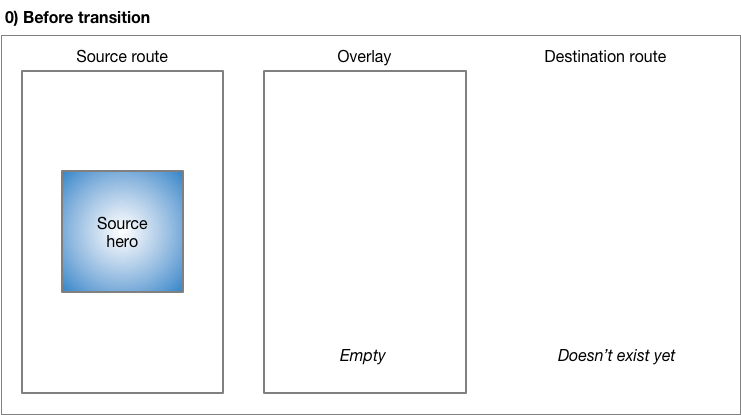
Before transition, the source hero waits in the source
route's widget tree. The destination route does not yet exist,
and the overlay is empty.
过渡前,source hero 在原页面的 widget 树中等待。
而目标页面此时并不存在,图层也是空的。
---
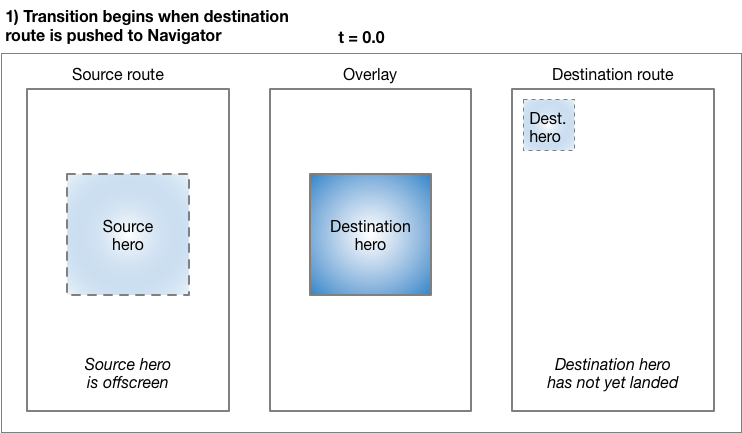
Pushing a route to the `Navigator` triggers the animation.
At `t=0.0`, Flutter does the following:
推送一个页面到 Navigator 来触发动画。t=0.0 时,Flutter 执行如下动作:
* Calculates the destination hero's path, offscreen,
using the curved motion as described in the Material
motion spec. Flutter now knows where the hero ends up.
使用 Material motion spec 中介绍的曲线运动计算
destination hero 路径,后台运行。
Flutter 限制知道 hero 应在何处终止。
* Places the destination hero in the overlay,
at the same location and size as the _source_ hero.
Adding a hero to the overlay changes its Z-order so that it
appears on top of all routes.
将 destination hero 放到图层,与 **source** hero 相同的位置和大小。
添加一个 hero 到图层改变其 Z 轴的顺序,
这样才可以出现在所有页面的上面。
* Moves the source hero offscreen.
将 source hero 移至后台运行。
---
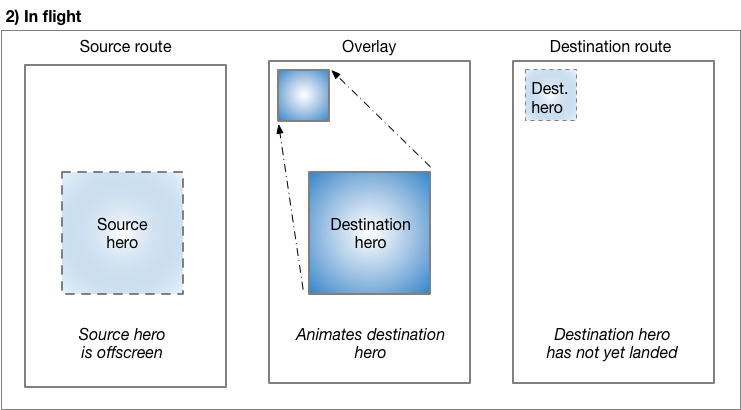
As the hero flies, its rectangular bounds are animated using
[Tween<Rect>][], specified in Hero's
[`createRectTween`][] property.
By default, Flutter uses an instance of
[`MaterialRectArcTween`][], which animates the
rectangle's opposing corners along a curved path.
(See [Radial hero animations][] for an example
that uses a different Tween animation.)
hero 飞翔时,它的矩形边界使用 Hero 的
[`createRectTween`][] 属性中特定的 [Tween<Rect>][] 进行动画。
默认情况下,Flutter 使用 [`MaterialRectArcTween`][] 的示例,
它沿着一个曲线路径设置矩形对角动画。
(参考 [径向 hero 动画][Radial hero animations],
该示例使用了不同的补间动画)
---
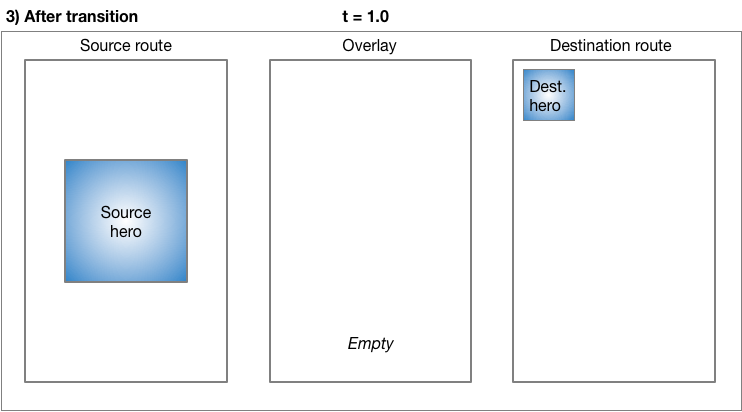
When the flight completes:
当飞翔完成时:
* Flutter moves the hero widget from the overlay to
the destination route. The overlay is now empty.
Flutter 将 hero widget 从图层移动到目标页面。图层现在是空的。
* The destination hero appears in its final position
in the destination route.
destination hero 出现在目标图层的最终位置。
* The source hero is restored to its route.
source hero 被储存到原页面中。
---
Popping the route performs the same process,
animating the hero back to its size
and location in the source route.
弹出的页面执行同样的过程,hero 动画回到原页面并回复原来大小和位置。
### Essential classes
### 基本类
The examples in this guide use the following classes to
implement hero animations:
本指南中的示例使用了如下类来实现 hero 动画:
[`Hero`][]
The widget that flies from the source to the destination route.
Define one Hero for the source route and another for the
destination route, and assign each the same tag.
Flutter animates pairs of heroes with matching tags.
[`Hero`][]
从原页面飞到目标页面的 widget。
定义一个原页面的 Hero 和另一个目标页面的 Hero,并设置相同的标签。
Flutter 为成对的含有匹配标签的 heroes 设置动画。
[`Inkwell`][]
Specifies what happens when tapping the hero.
The `InkWell`'s `onTap()` method builds the
new route and pushes it to the `Navigator`'s stack.
[`Inkwell`][]
指定点击 hero 时发生什么。
`InkWell` 的 `onTap()` 方法可以创建新页面并推送至 `Navigator` 的堆栈。
[`Navigator`][]
The Navigator manages a stack of routes. Pushing a route on or
popping a route from the Navigator's stack triggers the animation.
[`Navigator`][]
Navigator 管理一个页面堆栈。推送或弹出 Navigator 堆栈中的页面触发动画。
[`Route`][]
Specifies a screen or page. Most apps, beyond the most basic,
have multiple routes.
[`Route`][]
指定屏幕或页面。除最基本的应用程序外,大部分含有多页面。
## Standard hero animations
## 标准 hero 动画
:::secondary 要点
* Specify a route using `MaterialPageRoute`, `CupertinoPageRoute`,
or build a custom route using `PageRouteBuilder`.
The examples in this section use MaterialPageRoute.
使用 MaterialPageRoute,CupertinoPageRoute 指定页面,
或使用 PageRouteBuilder 创建自定义页面。本章节示例使用的时 MaterialPageRoute。
* Change the size of the image at the end of the transition by
wrapping the destination's image in a `SizedBox`.
在过渡的最后,通过在 `SizedBox` 中裹挟目标图像来改变图像大小。
* Change the location of the image by placing the destination's
image in a layout widget. These examples use `Container`.
通过在布局 widget 中放置目标图像来改变图像位置。这些示例中使用 `Container`。
:::
:::secondary 标准 hero 动画代码
Each of the following examples demonstrates flying an image from one
route to another. This guide describes the first example.
下面的每个示例都演示了一个图形从一页面飞至另一页面。本指南详细介绍第一个例子。
[hero_animation][]
Encapsulates the hero code in a custom `PhotoHero` widget.
Animates the hero's motion along a curved path,
as described in the Material motion spec.
[hero_animation][]
将 hero 代码封装到自定义的 `PhotoHero` widget 中。
沿 Material motion spec 中介绍的曲线路径设置 hero 动作的动画。
[basic_hero_animation][]
Uses the hero widget directly.
This more basic example, provided for your reference, isn't
described in this guide.
[basic_hero_animation][]
直接使用 hero widget。
这个基础示例仅供参考,本指南中无详细介绍。
:::
### What's going on?
### 然后呢?
Flying an image from one route to another is easy to implement
using Flutter's hero widget. When using `MaterialPageRoute`
to specify the new route, the image flies along a curved path,
as described by the [Material Design motion spec][].
使用 Flutter 的 hero widget 可以轻松实现图像由一个页面飞至另一个。
当使用 MaterialPageRoute 指定新页面时,
图像将沿 [Material Design motion spec][] 中介绍的曲线路径飞翔。
[Create a new Flutter app][] and
update it using the files from the [hero_animation][].
[创建一个新的 Flutter 应用][Create a new Flutter app]
并使用来自 [hero_animation][] 的文件更新。
To run the example:
运行示例:
* Tap on the home route's photo to fly the image to a new route
showing the same photo at a different location and scale.
点击主页的图片使图像飞至新页面并在不同位置以不同规格显示相同图片。
* Return to the previous route by tapping the image, or by using the
device's back-to-the-previous-route gesture.
点击图像或使用设备的回到前页手势返回之前页面。
* You can slow the transition further using the `timeDilation`
property.
可以使用 `timeDilation` 属性来减缓过渡。
### PhotoHero class
### PhotoHero 类
The custom PhotoHero class maintains the hero,
and its size, image, and behavior when tapped.
The PhotoHero builds the following widget tree:
自定义的 PhotoHero 类保留了 hero 以及其大小,图像,和点击时的动作。PhotoHero 创建如下 widget 树:
Here's the code:
代码如下:
```dart
class PhotoHero extends StatelessWidget {
const PhotoHero({
super.key,
required this.photo,
this.onTap,
required this.width,
});
final String photo;
final VoidCallback? onTap;
final double width;
@override
Widget build(BuildContext context) {
return SizedBox(
width: width,
child: Hero(
tag: photo,
child: Material(
color: Colors.transparent,
child: InkWell(
onTap: onTap,
child: Image.asset(
photo,
fit: BoxFit.contain,
),
),
),
),
);
}
}
```
Key information:
重要信息:
* The starting route is implicitly pushed by `MaterialApp` when
`HeroAnimation` is provided as the app's home property.
当 `HeroAnimation` 作为应用程序的主页属性时,
起始页面由 `MaterialApp` 隐式推送。
* An `InkWell` wraps the image, making it trivial to add a tap
gesture to the both the source and destination heroes.
`InkWell` 裹挟图像,使得为 source hero 和
destination hero 添加点击动作变得简单。
* Defining the Material widget with a transparent color
enables the image to "pop out" of the background as it
flies to its destination.
用透明色定义 Material widget 使图片在飞至目标页时可以从背景中“弹出”。
* The `SizedBox` specifies the hero's size at the start and
end of the animation.
`SizedBox` 指定动画起始和结束时 hero 的大小。
* Setting the Image's `fit` property to `BoxFit.contain`,
ensures that the image is as large as possible during the
transition without changing its aspect ratio.
设置图像的 `fit` 属性到 `BoxFit.contain`,
可以确保在过渡过程中尽可能放大,且不改变长宽比例。
### HeroAnimation class
### HeroAnimation 类
The `HeroAnimation` class creates the source and destination
PhotoHeroes, and sets up the transition.
HeroAnimation 类可以创建 source PhotoHero 和 destination PhotoHero,并建立过渡。
Here's the code:
代码如下:
```dart
class HeroAnimation extends StatelessWidget {
const HeroAnimation({super.key});
Widget build(BuildContext context) {
[!timeDilation = 5.0; // 1.0 means normal animation speed.!]
return Scaffold(
appBar: AppBar(
title: const Text('Basic Hero Animation'),
),
body: Center(
[!child: PhotoHero(!]
photo: 'images/flippers-alpha.png',
width: 300.0,
[!onTap: ()!] {
[!Navigator.of(context).push(MaterialPageRoute(!]
[!builder: (context)!] {
return Scaffold(
appBar: AppBar(
title: const Text('Flippers Page'),
),
body: Container(
// Set background to blue to emphasize that it's a new route.
color: Colors.lightBlueAccent,
padding: const EdgeInsets.all(16),
alignment: Alignment.topLeft,
[!child: PhotoHero(!]
photo: 'images/flippers-alpha.png',
width: 100.0,
[!onTap: ()!] {
[!Navigator.of(context).pop();!]
},
),
),
);
}
));
},
),
),
);
}
}
```
Key information:
重要信息:
* When the user taps the `InkWell` containing the source hero,
the code creates the destination route using `MaterialPageRoute`.
Pushing the destination route to the `Navigator`'s stack triggers
the animation.
当用户点击含有 source hero 的 `InkWell` 时,代码使用 `MaterialPageRoute`
生成目标页面。并将目标页面推送至 `Navigator` 堆栈,触发动画。
* The `Container` positions the `PhotoHero` in the destination
route's top-left corner, below the `AppBar`.
`Container` 将 `PhotoHero` 置于目标页面左上角,AppBar 的下方。
* The `onTap()` method for the destination `PhotoHero`
pops the `Navigator`'s stack, triggering the animation
that flies the `Hero` back to the original route.
目标页 `PhotoHero` 的 `onTap()` 函数会弹出 `Navigator` 的堆栈,触发动画 Hero 飞回至原页面。
* Use the `timeDilation` property to slow the transition
while debugging.
在调试时,可以使用 `timeDilation` 属性来减缓过渡。
---
## Radial hero animations
## 径向 hero 动画
:::secondary 要点
* A _radial transformation_ animates a circular shape into a square
shape.
**径向过渡** 是由圆形变成正方形的过渡动画。
* A radial _hero_ animation performs a radial transformation while
flying the hero from the source route to the destination route.
径向 **hero** 动画在 hero 从原页面飞至目标页面时,执行径向过渡。
* MaterialRectCenterArcTween defines the tween animation.
MaterialRectCenterArcTween 定义了补间动画。
* Build the destination route using `PageRouteBuilder`.
使用 PageRouteBuilder 创建目标页。
:::
Flying a hero from one route to another as it transforms
from a circular shape to a rectangular shape is a slick
effect that you can implement using Hero widgets.
To accomplish this, the code animates the intersection of
two clip shapes: a circle and a square.
Throughout the animation, the circle clip (and the image)
scales from `minRadius` to `maxRadius`, while the square
clip maintains constant size. At the same time,
the image flies from its position in the source route to its
position in the destination route. For visual examples
of this transition, see [Radial transformation][]
in the Material motion spec.
hero 从一个页面飞至另一页的同时由圆形过渡到矩形,
这是一个滑入效果,可使用 Hero widgets 来实现。
要做到这一点,代码需要动画两个剪裁形状的交叉:
一个圆形和一个正方形。整个动画中,圆形剪裁(和图片)由
`minRadius` 缩放到 `maxRadius`,而正方形剪裁保持大小不变。
同时,图像从原页面飞至目标页面的相同位置。
这个过渡的效果示例,
请参见 Material motion spec 中的 [径向过渡][Radial transformation]。
This animation might seem complex (and it is), but you can **customize the
provided example to your needs.** The heavy lifting is done for you.
这个动画看起来复杂,但是你可以**根据自身需要自定义范例**。
艰巨的工作已为你完成。
:::secondary 径向 hero 动画代码
Each of the following examples demonstrates a radial hero animation.
This guide describes the first example.
下面的每个示例都演示了一个径向 hero 动画。
本指南详细介绍第一个示例。
[radial_hero_animation][]
A radial hero animation as described in the Material motion spec.
[radial_hero_animation][]
Material motion spec 中详细介绍了这个径向 hero 动画。
[basic_radial_hero_animation][]
The simplest example of a radial hero animation. The destination
route has no Scaffold, Card, Column, or Text.
This basic example, provided for your reference, isn't
described in this guide.
[basic_radial_hero_animation][]
径向 hero 动画最简单的示例。
目标页面没有 Scaffold, Card, Column, 或 Text。
这个基本示例仅供参考,本指南不详述。
[radial_hero_animation_animate_rectclip][]
Extends radial_hero_animation by also animating the size of the
rectangular clip. This more advanced example,
provided for your reference, isn't described in this guide.
[radial_hero_animation_animate_rectclip][]
通过动画矩形剪裁大小,扩展径向 hero 动画。
这个高阶示例亦供参考,本指南不详述。
:::
:::tip 技巧
The radial hero animation involves intersecting a round shape with
a square shape. This can be hard to see, even when slowing
the animation with `timeDilation`, so you might consider enabling
the [`debugPaintSizeEnabled`][] flag during development.
径向 hero 动画设计圆形和正方形的交叉。
这个很难看出来,即使使用 `timeDilation` 来减慢动画。
所以在开发时,可以考虑启用 Flutter 的 [`debugPaintSizeEnabled`][] 这个 flag。
:::
### What's going on?
### 然后呢?
The following diagram shows the clipped image at the beginning
(`t = 0.0`), and the end (`t = 1.0`) of the animation.
下面的图表显示了在动画起始(`t = 0.0`)和结束(`t = 1.0`)时的剪裁图像。

The blue gradient (representing the image), indicates where the clip
shapes intersect. At the beginning of the transition,
the result of the intersection is a circular clip ([`ClipOval`][]).
During the transformation, the `ClipOval` scales from `minRadius`
to `maxRadius` while the [ClipRect][] maintains a constant size.
At the end of the transition the intersection of the circular and
rectangular clips yield a rectangle that's the same size as the hero
widget. In other words, at the end of the transition the image is no
longer clipped.
蓝色渐变(代表图像),表明剪裁形状交叉的位置。
在过渡的开始,交叉的结果是圆形剪裁 ([`ClipOval`][])。
在过渡过程中,ClipOval 由 `minRadius` 缩放至 `maxRadius`,
[ClipRect][] 则保持原尺寸。
在过渡结束时,圆形和矩形剪裁的交集产生一个与 hero widget 相同大小的矩形。
也就是说,在过渡结束时,图片已不再被剪裁。
[Create a new Flutter app][] and
update it using the files from the
[radial_hero_animation][] GitHub directory.
[创建一个新的 Flutter 应用][Create a new Flutter app] 并使用来自
[radial_hero_animation][] 的文件更新。
To run the example:
运行示例:
* Tap on one of the three circular thumbnails to animate the image
to a larger square positioned in the middle of a new route that
obscures the original route.
点击三个圆形缩略图中的任意一个,
使图像变成位于新页面中间的一个较大的正方形,且覆盖原页面。
* Return to the previous route by tapping the image, or by using the
device's back-to-the-previous-route gesture.
点击图片或使用设备的返回手势,返回之前页面。
* You can slow the transition further using the `timeDilation`
property.
可以使用 `timeDilation` 属性来减缓过渡。
### Photo class
### Photo 类
The `Photo` class builds the widget tree that holds the image:
Photo 类创建保存图像的 widget 树:
```dart
class Photo extends StatelessWidget {
const Photo({super.key, required this.photo, this.color, this.onTap});
final String photo;
final Color? color;
final VoidCallback onTap;
Widget build(BuildContext context) {
return [!Material(!]
// Slightly opaque color appears where the image has transparency.
[!color: Theme.of(context).primaryColor.withValues(alpha: 0.25),!]
child: [!InkWell(!]
onTap: [!onTap,!]
child: [!Image.asset(!]
photo,
fit: BoxFit.contain,
),
),
);
}
}
```
Key information:
重要信息:
* The `InkWell` captures the tap gesture.
The calling function passes the `onTap()` function to the
`Photo`'s constructor.
`Inkwell` 捕捉点击动作。调用函数将 `onTap()` 函数传递给 Photo 的构造函数。
* During flight, the `InkWell` draws its splash on its first
Material ancestor.
飞翔过程中,InkWell 的飞溅效果会出现在它第一个 Material 祖先上。
* The Material widget has a slightly opaque color, so the
transparent portions of the image are rendered with color.
This ensures that the circle-to-square transition is easy to see,
even for images with transparency.
Material widget 有轻微不透明色,所以图像的透明部分会被渲染上颜色。
这确保了圆形到正方形过渡,即使是透明的图像依然清晰可见。
* The `Photo` class does not include the `Hero` in its widget tree.
For the animation to work, the hero
wraps the `RadialExpansion` widget.
Photo 类的 widget 树中并不包含 Hero。
为了使动画运行,hero需要包裹 `RadialExpansion` widget。
### RadialExpansion class
### RadialExpansion 类
The `RadialExpansion` widget, the core of the demo, builds the
widget tree that clips the image during the transition.
The clipped shape results from the intersection of a circular clip
(that grows during flight),
with a rectangular clip (that remains a constant size throughout).
RadialExpansion widget,demo 的核心,建立过渡过程中剪裁图像的 widget 树。
剪裁的形状来自于圆形剪裁(飞翔过程中增长)
和矩形剪裁(自始至终保持一致大小)的交集。
To do this, it builds the following widget tree:
为此,它建立了如下 widget 树:
Here's the code:
代码如下:
```dart
class RadialExpansion extends StatelessWidget {
const RadialExpansion({
super.key,
required this.maxRadius,
this.child,
}) : [!clipRectSize = 2.0 * (maxRadius / math.sqrt2);!]
final double maxRadius;
final double clipRectSize;
final Widget? child;
@override
Widget build(BuildContext context) {
return [!ClipOval(!]
child: [!Center(!]
child: [!SizedBox(!]
width: clipRectSize,
height: clipRectSize,
child: [!ClipRect(!]
child: [!child,!] // Photo
),
),
),
);
}
}
```
Key information:
重要信息:
* The hero wraps the `RadialExpansion` widget.
hero 包裹 `RadialExpansion` widget。
* As the hero flies, its size changes and,
because it constrains its child's size,
the `RadialExpansion` widget changes size to match.
hero 飞翔时会改变大小,因为它限制了 child 的大小,
所以 `RadialExpansion` widget 会改变大小以匹配。
* The `RadialExpansion` animation is created by two overlapping clips.
`RadialExpansion` 动画由两个重叠的剪裁创建。
* The example defines the tweening interpolation using
[`MaterialRectCenterArcTween`][].
The default flight path for a hero animation
interpolates the tweens using the corners of the heroes.
This approach affects the hero's aspect ratio during
the radial transformation, so the new flight path uses
`MaterialRectCenterArcTween` to interpolate the tweens using the
center point of each hero.
这个示例用 [`MaterialRectCenterArcTween`][] 定义了补间插值。
hero 动画的默认飞翔路径,利用 heroes 的角插值补间。
这个方法会影响到径向过渡时 hero 的长宽比例,
所以新的飞翔路径使用 `MaterialRectCenterArcTween` 方法,
利用每个 hero 的中心点来插值补间。
Here's the code:
代码如下:
```dart
static RectTween _createRectTween(Rect? begin, Rect? end) {
return MaterialRectCenterArcTween(begin: begin, end: end);
}
```
The hero's flight path still follows an arc,
but the image's aspect ratio remains constant.
Hero 的飞行路线仍然是一个弧线,
但图像的长宽比将保持不变。
[Animations in Flutter tutorial]: /ui/animations/tutorial
[basic_hero_animation]: https://github.com/cfug/flutter.cn/tree/main/examples/_animation/basic_hero_animation/
[basic_radial_hero_animation]: https://github.com/cfug/flutter.cn/tree/main/examples/_animation/basic_radial_hero_animation
[Building Layouts in Flutter]: /ui/layout
[`ClipOval`]: https://api.flutter-io.cn/flutter/widgets/ClipOval-class.html
[ClipRect]: https://api.flutter-io.cn/flutter/widgets/ClipRect-class.html
[Create a new Flutter app]: /reference/create-new-app
[`createRectTween`]: https://api.flutter-io.cn/flutter/widgets/CreateRectTween.html
[`debugPaintSizeEnabled`]: /tools/devtools/inspector#debugging-layout-issues-visually
[`Hero`]: https://api.flutter-io.cn/flutter/widgets/Hero-class.html
[hero_animation]: https://github.com/cfug/flutter.cn/tree/main/examples/_animation/hero_animation/
[`InkWell`]: https://api.flutter-io.cn/flutter/material/InkWell-class.html
[Material Design motion spec]: https://m2.material.io/design/motion/understanding-motion.html#principles
[`MaterialRectArcTween`]: https://api.flutter-io.cn/flutter/material/MaterialRectArcTween-class.html
[`MaterialRectCenterArcTween`]: https://api.flutter-io.cn/flutter/material/MaterialRectCenterArcTween-class.html
[`Navigator`]: https://api.flutter-io.cn/flutter/widgets/Navigator-class.html
[Radial hero animation code]: #radial-hero-animation-code
[radial_hero_animation]: https://github.com/cfug/flutter.cn/tree/main/examples/_animation/radial_hero_animation
[radial_hero_animation_animate_rectclip]: https://github.com/cfug/flutter.cn/tree/main/examples/_animation/radial_hero_animation_animate_rectclip
[Radial hero animations]: #radial-hero-animations
[Radial transformation]: https://web.archive.org/web/20180223140424/https://material.io/guidelines/motion/transforming-material.html
[`RectTween`]: https://api.flutter-io.cn/flutter/animation/RectTween-class.html
[_Route_]: /cookbook/navigation/navigation-basics
[`Route`]: https://api.flutter-io.cn/flutter/widgets/Route-class.html
[Standard hero animation code]: #standard-hero-animation-code
[Tween<Rect>]: https://api.flutter-io.cn/flutter/animation/Tween-class.html