# 动画效果介绍
> 如何使用 Flutter 实现动画效果。
Well-designed animations make a UI feel more intuitive,
contribute to the slick look and feel of a polished app,
and improve the user experience.
Flutter's animation support makes it easy to implement a variety of
animation types. Many widgets, especially [Material widgets][],
come with the standard motion effects defined in their design spec,
but it's also possible to customize these effects.
精心设计的动画会使 UI 更生动,
它有助于提升应用程序更精巧的外观和感觉,
从而改善用户体验。
Flutter 让各种动画效果的实现变得容易。
在许多 widget 特别是 [Material widgets][] 中,
它们都自带其设计规范中定义的标准动画效果,
当然,你也可以定制这些效果。
## Choosing an approach
## 选择一种实现方式
There are different approaches you can take when creating
animations in Flutter. Which approach is right for you?
To help you decide, check out the video,
[How to choose which Flutter Animation Widget is right for you?][]
(Also published as a [_companion article_][article1].)
在 Flutter 中创建动画可以有多种不同实现方式。
那么,究竟哪种才是最适合你的呢?
为了帮助你更好的理解它,你可以观看下面的视频,
[如何在 Flutter 中选择合适的动画 Widget][How to choose which Flutter Animation Widget is right for you?]
(同时也发布了一篇 [配套文章][article1]。)
(To dive deeper into the decision process,
watch the [Animations in Flutter done right][] video,
presented at Flutter Europe.)
(若想要深入了解它的决策流程,
请观看在 Flutter Europe 社区账号发布的
[在 Flutter 中使用动画的正确选择][Animations in Flutter done right])视频。
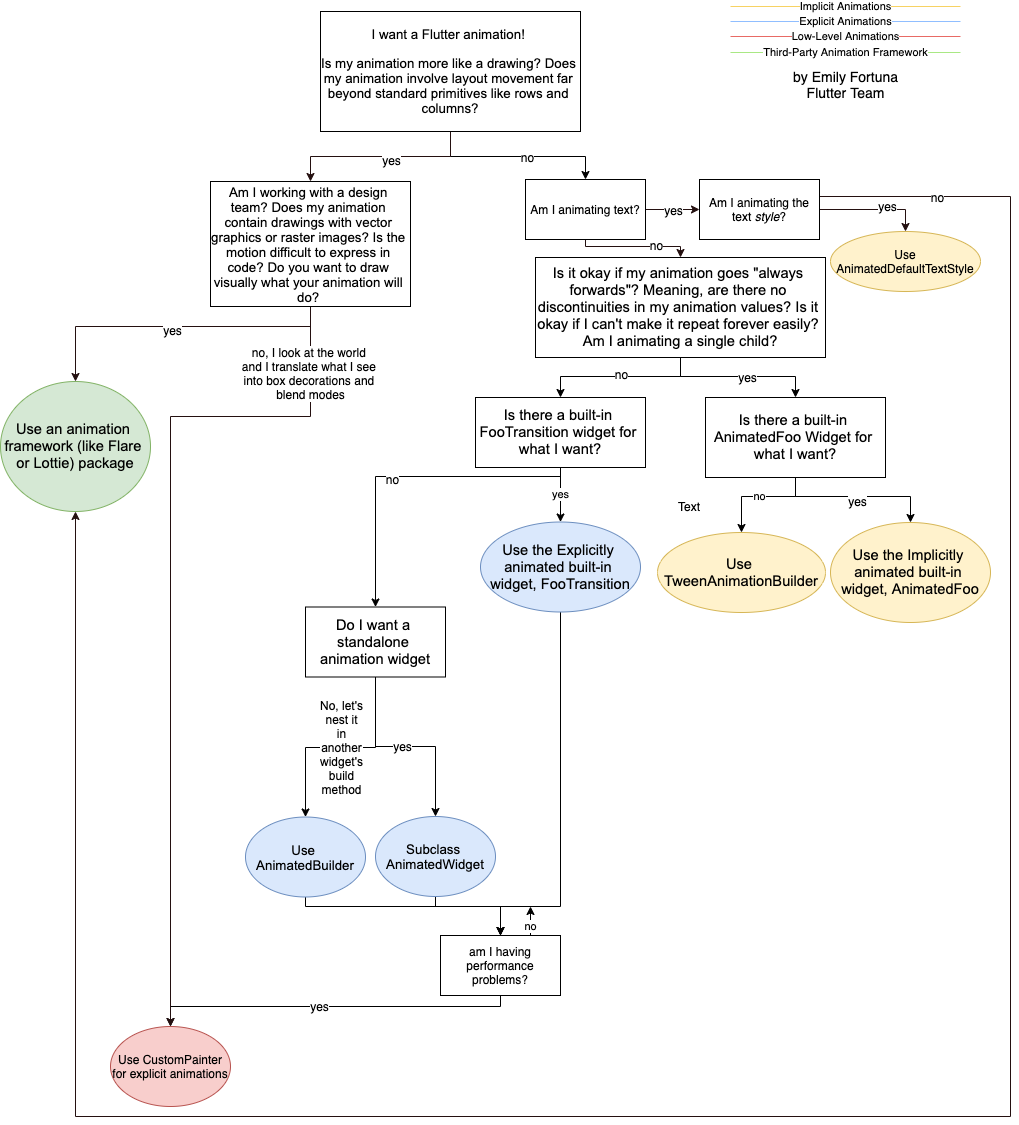
As shown in the video, the following
decision tree helps you decide what approach
to use when implementing a Flutter animation:
正如视频中说的那样,
下面的决策树将帮助你挑选实现 Flutter 动画的正确方式:
 ## Animation deep dive
## 深入了解动画
For a deeper understanding of just how animations work in Flutter, watch
[Animation deep dive][].
(Also published as a [_companion article_][article6].)
要深入了解 Flutter 中的动画是如何工作的,
请观看视频 [Animation deep dive][]。
(同时也发表了 [_配套文章_][article6])。
## Implicit and explicit animations
## 隐式动画和显式动画
### Pre-packaged implicit animations
### 内置的隐式动画
If a pre-packaged implicit animation (the easiest animation
to implement) suits your needs, watch
[Animation basics with implicit animations][].
(Also published as a [_companion article_][article2].)
如果内置的隐式动画(最简单的动画)已经能够满足你的需求,
请观看 [隐式动画基础][Animation basics with implicit animations]。
(同时也发布了一篇 [_配套文章_][article2]。)
### Custom implicit animations
### 自定义隐式动画
To create a custom implicit animation, watch
[Creating your own custom implicit animations with TweenAnimationBuilder][].
(Also published as a [_companion article_][article3].)
要创建一个自定义的隐式动画,请观看
[使用 TweenAnimationBuilder 创建独特的隐式动画][Creating your own custom implicit animations with TweenAnimationBuilder]。
(同时也发布了一篇 [_配套文章_][article3]。)
### Built-in explicit animations
### 内置的显式动画
To create an explicit animation (where you control the animation,
rather than letting the framework control it), perhaps
you can use one of the built-in explicit animations classes.
For more information, watch
[Making your first directional animations with
built-in explicit animations][].
(Also published as a [_companion article_][article4].)
要创建显式动画(手动控制,而不是让框架控制),
你可以使用内置的其中一个显式动画类来实现。更多有关信息,请观看
[使用内置显式动画][Making your first directional animations with
built-in explicit animations]。
(同时也发布了一篇 [_配套文章_][article4]。)
### Explicit animations
### 显式动画
If you need to build an explicit animation from scratch, watch
[Creating custom explicit animations with
AnimatedBuilder and AnimatedWidget][].
(Also published as a [_companion article_][article5].)
如果你需要从头开始构建显式动画,请观看
[通过 AnimatedBuilder 和 AnimatedWidget 创建一个自定义动画][Creating custom explicit animations with AnimatedBuilder and AnimatedWidget]。
(同时也发布了一篇 [_配套文章_][article5]。)
## Animation types
## 动画类型
Generally, animations are either tween- or physics-based.
The following sections explain what these terms mean,
and point you to resources where you can learn more.
动画分为两类:补间动画和基于物理动画。下面将解释这些术语的含义,
并帮助你找到更多相关资源。在一些情况下,
我们现有的最佳文档是 Flutter gallery 中的示例代码。
### Tween animation
### 补间动画
Short for _in-betweening_. In a tween animation, the beginning
and ending points are defined, as well as a timeline, and a curve
that defines the timing and speed of the transition.
The framework calculates how to transition from the beginning point
to the end point.
补间动画是“介于两者之间”的缩写。
在补间动画中,定义了起点和终点以及时间轴,
再定义过渡时间和速度的曲线。然后框架会计算如何从起点过渡到终点。
* See the [Animations tutorial][], which uses tweens in the examples.
请查阅 [动画教程][Animations tutorial],该教程在示例中使用了 Tween。
* Also see the API documentation for [`Tween`][], [`CurveTween`][], and
[`TweenSequence`][].
另外还可以查阅 API 文档中的 [`Tween`][]、[`CurveTween`][] 和 [`TweenSequence`][]。
### Physics-based animation
### 基于物理基础的动画
In physics-based animation, motion is modeled to resemble real-world
behavior. When you toss a ball, for example, where and when it lands
depends on how fast it was tossed and how far it was from the ground.
Similarly, dropping a ball attached to a spring falls
(and bounces) differently than dropping a ball attached to a string.
在基于物理基础的动画中,动作是模拟真实世界的行为来进行建模的。
举个例子,当你抛球时,球落地的时间和位置取决于抛出的速度和距离地面的高度。
类似地,附在弹簧上的球和附在绳子上的球掉落(和反弹)方式是不一样的。
* [Animate a widget using a physics simulation][]
## Animation deep dive
## 深入了解动画
For a deeper understanding of just how animations work in Flutter, watch
[Animation deep dive][].
(Also published as a [_companion article_][article6].)
要深入了解 Flutter 中的动画是如何工作的,
请观看视频 [Animation deep dive][]。
(同时也发表了 [_配套文章_][article6])。
## Implicit and explicit animations
## 隐式动画和显式动画
### Pre-packaged implicit animations
### 内置的隐式动画
If a pre-packaged implicit animation (the easiest animation
to implement) suits your needs, watch
[Animation basics with implicit animations][].
(Also published as a [_companion article_][article2].)
如果内置的隐式动画(最简单的动画)已经能够满足你的需求,
请观看 [隐式动画基础][Animation basics with implicit animations]。
(同时也发布了一篇 [_配套文章_][article2]。)
### Custom implicit animations
### 自定义隐式动画
To create a custom implicit animation, watch
[Creating your own custom implicit animations with TweenAnimationBuilder][].
(Also published as a [_companion article_][article3].)
要创建一个自定义的隐式动画,请观看
[使用 TweenAnimationBuilder 创建独特的隐式动画][Creating your own custom implicit animations with TweenAnimationBuilder]。
(同时也发布了一篇 [_配套文章_][article3]。)
### Built-in explicit animations
### 内置的显式动画
To create an explicit animation (where you control the animation,
rather than letting the framework control it), perhaps
you can use one of the built-in explicit animations classes.
For more information, watch
[Making your first directional animations with
built-in explicit animations][].
(Also published as a [_companion article_][article4].)
要创建显式动画(手动控制,而不是让框架控制),
你可以使用内置的其中一个显式动画类来实现。更多有关信息,请观看
[使用内置显式动画][Making your first directional animations with
built-in explicit animations]。
(同时也发布了一篇 [_配套文章_][article4]。)
### Explicit animations
### 显式动画
If you need to build an explicit animation from scratch, watch
[Creating custom explicit animations with
AnimatedBuilder and AnimatedWidget][].
(Also published as a [_companion article_][article5].)
如果你需要从头开始构建显式动画,请观看
[通过 AnimatedBuilder 和 AnimatedWidget 创建一个自定义动画][Creating custom explicit animations with AnimatedBuilder and AnimatedWidget]。
(同时也发布了一篇 [_配套文章_][article5]。)
## Animation types
## 动画类型
Generally, animations are either tween- or physics-based.
The following sections explain what these terms mean,
and point you to resources where you can learn more.
动画分为两类:补间动画和基于物理动画。下面将解释这些术语的含义,
并帮助你找到更多相关资源。在一些情况下,
我们现有的最佳文档是 Flutter gallery 中的示例代码。
### Tween animation
### 补间动画
Short for _in-betweening_. In a tween animation, the beginning
and ending points are defined, as well as a timeline, and a curve
that defines the timing and speed of the transition.
The framework calculates how to transition from the beginning point
to the end point.
补间动画是“介于两者之间”的缩写。
在补间动画中,定义了起点和终点以及时间轴,
再定义过渡时间和速度的曲线。然后框架会计算如何从起点过渡到终点。
* See the [Animations tutorial][], which uses tweens in the examples.
请查阅 [动画教程][Animations tutorial],该教程在示例中使用了 Tween。
* Also see the API documentation for [`Tween`][], [`CurveTween`][], and
[`TweenSequence`][].
另外还可以查阅 API 文档中的 [`Tween`][]、[`CurveTween`][] 和 [`TweenSequence`][]。
### Physics-based animation
### 基于物理基础的动画
In physics-based animation, motion is modeled to resemble real-world
behavior. When you toss a ball, for example, where and when it lands
depends on how fast it was tossed and how far it was from the ground.
Similarly, dropping a ball attached to a spring falls
(and bounces) differently than dropping a ball attached to a string.
在基于物理基础的动画中,动作是模拟真实世界的行为来进行建模的。
举个例子,当你抛球时,球落地的时间和位置取决于抛出的速度和距离地面的高度。
类似地,附在弹簧上的球和附在绳子上的球掉落(和反弹)方式是不一样的。
* [Animate a widget using a physics simulation][]
A recipe in the animations section of the Flutter cookbook.
[使用物理模拟动画效果][Animate a widget using a physics simulation]
在 Flutter cookbook 中的动画教程。
* Also see the API documentation for
[`AnimationController.animateWith`][] and
[`SpringSimulation`][].
请参考 API 文档 [`AnimationController.animateWith`][]
和 [`SpringSimulation`][]。
## Common animation patterns
## 常见动画模式
Most UX or motion designers find that certain
animation patterns are used repeatedly when designing a UI.
This section lists some of the commonly
used animation patterns, and tells you where to learn more.
大多数 UX 或 动效设计师在设计 UI 时都会寻找主要动画模式。
本章的列表将介绍一些常见的动画模式,并向你介绍更多学习它们的地方。
### Animated list or grid
### 列表或网格动画
This pattern involves animating the addition or removal of
elements from a list or grid.
这种模式用于在列表或网格中添加或删除元素。
* [`AnimatedList` example][]
This demo, from the [Sample app catalog][], shows how to
animate adding an element to a list, or removing a selected element.
The internal Dart list is synced as the user modifies the list using
the plus (+) and minus (-) buttons.
[`AnimatedList` example][]
这个来自 [Sample app catalog][] 的演示展示了
如何动态添加元素至列表或删除选定元素。
当用户使用 plus (+) 和 minus (-) 按钮修改列表时,
会同步到内部 Dart 列表。
### Shared element transition
### 共享元素转换
In this pattern, the user selects an element—often an
image—from the page, and the UI animates the selected element
to a new page with more detail. In Flutter, you can easily implement
shared element transitions between routes (pages)
using the `Hero` widget.
在这个模式中,用户从页面中选择一个元素,通常是图像,
然后 UI 会在新页面中为指定元素添加动画,并生成更多细节。
在 Flutter 中,你可以通过 Hero widget
轻松实现路径(页面)间的共享元素转换动画。
* [Hero animations][]
How to create two styles of Hero animations:
[Hero animations][] 如何创建两种风格的 Hero 动画:
* The hero flies from one page to another while changing position
and size.
当改变位置和大小时,Hero 从一页飞至另一页。
* The hero's boundary changes shape, from a circle to a square,
as its flies from one page to another.
Hero 的边界改变形状由圆变方,同时从一页飞至另一页。
* Also see the API documentation for the
[`Hero`][], [`Navigator`][], and [`PageRoute`][] classes.
另请参阅 API 文档 [`Hero`][]、[`Navigator`][] 和 [`PageRoute`][] 类。
### Staggered animation
### 交织动画
Animations that are broken into smaller motions,
where some of the motion is delayed.
The smaller animations might be sequential,
or might partially or completely overlap.
动画被分解成较小的动作,其中一些动作被延迟。
这些小动画可以是连续的,也可以部分或完全重叠。
* [Staggered Animations][]
[交织动画][Staggered Animations]
## Essential animation concepts and classes
The animation system in Flutter is based on typed
[`Animation`][] objects. Widgets can either incorporate
these animations in their build functions directly by
reading their current value and listening to their state
changes or they can use the animations as the basis of
more elaborate animations that they pass along to
other widgets.
### Animation\
In Flutter, an `Animation` object knows nothing about what
is onscreen. An `Animation` is an abstract class that
understands its current value and its state (completed or dismissed).
One of the more commonly used animation types is `Animation`.
An `Animation` object sequentially generates
interpolated numbers between two values over a certain duration.
The output of an `Animation` object might be linear,
a curve, a step function, or any other mapping you can create.
Depending on how the `Animation` object is controlled,
it could run in reverse, or even switch directions in the
middle.
Animations can also interpolate types other than double, such as
`Animation` or `Animation`.
An `Animation` object has state. Its current value is
always available in the `.value` member.
An `Animation` object knows nothing about rendering or
`build()` functions.
### CurvedAnimation
A [`CurvedAnimation`][] defines the animation's progress
as a non-linear curve.
```dart
animation = CurvedAnimation(parent: controller, curve: Curves.easeIn);
```
`CurvedAnimation` and `AnimationController` (described in the next sections)
are both of type `Animation`, so you can pass them interchangeably.
The `CurvedAnimation` wraps the object it's modifying—you
don't subclass `AnimationController` to implement a curve.
You can use [`Curves`][] with `CurvedAnimation`. The `Curves` class defines
many commonly used curves, or you can create your own. For example:
```dart
import 'dart:math';
class ShakeCurve extends Curve {
@override
double transform(double t) => sin(t * pi * 2);
}
```
If you want to apply an animation curve to a `Tween`, consider using
[`CurveTween`][].
### AnimationController
[`AnimationController`][] is a special `Animation`
object that generates a new value whenever the hardware
is ready for a new frame. By default,
an `AnimationController` linearly produces the numbers
from 0.0 to 1.0 during a given duration.
For example, this code creates an `Animation` object,
but does not start it running:
```dart
controller = AnimationController(
duration: const Duration(seconds: 2),
vsync: this,
);
```
`AnimationController` derives from `Animation`, so it can be used
wherever an `Animation` object is needed. However, the `AnimationController`
has additional methods to control the animation. For example, you start
an animation with the `.forward()` method. The generation of numbers is
tied to the screen refresh, so typically 60 numbers are generated per
second. After each number is generated, each `Animation` object calls the
attached `Listener` objects. To create a custom display list for each
child, see [`RepaintBoundary`][].
When creating an `AnimationController`, you pass it a `vsync` argument.
The presence of `vsync` prevents offscreen animations from consuming
unnecessary resources.
You can use your stateful object as the vsync by adding
`SingleTickerProviderStateMixin` to the class definition.
You can see an example of this in [animate1][] on GitHub.
:::note
In some cases, a position might exceed the `AnimationController`'s
0.0-1.0 range. For example, the `fling()` function
allows you to provide velocity, force, and position
(using the Force object). The position can be anything and
so can be outside of the 0.0 to 1.0 range.
A `CurvedAnimation` can also exceed the 0.0 to 1.0 range,
even if the `AnimationController` doesn't.
Depending on the curve selected, the output of
the `CurvedAnimation` can have a wider range than the input.
For example, elastic curves such as `Curves.elasticIn`
significantly overshoots or undershoots the default range.
:::
### Tween
By default, the `AnimationController` object ranges from 0.0 to 1.0.
If you need a different range or a different data type, you can use a
[`Tween`][] to configure an animation to interpolate to a
different range or data type. For example, the
following `Tween` goes from -200.0 to 0.0:
```dart
tween = Tween(begin: -200, end: 0);
```
A `Tween` is a stateless object that takes only `begin` and `end`.
The sole job of a `Tween` is to define a mapping from an
input range to an output range. The input range is commonly
0.0 to 1.0, but that's not a requirement.
A `Tween` inherits from `Animatable`, not from `Animation`.
An `Animatable`, like `Animation`, doesn't have to output double.
For example, `ColorTween` specifies a progression between two colors.
```dart
colorTween = ColorTween(begin: Colors.transparent, end: Colors.black54);
```
A `Tween` object doesn't store any state. Instead, it provides the
[`evaluate(Animation animation)`][] method that uses the
`transform` function to map the current value of the animation
(between 0.0 and 1.0), to the actual animation value.
The current value of the `Animation` object can be found in the
`.value` method. The evaluate function also performs some housekeeping,
such as ensuring that begin and end are returned when the
animation values are 0.0 and 1.0, respectively.
#### Tween.animate
To use a `Tween` object, call `animate()` on the `Tween`,
passing in the controller object. For example,
the following code generates the
integer values from 0 to 255 over the course of 500 ms.
```dart
AnimationController controller = AnimationController(
duration: const Duration(milliseconds: 500),
vsync: this,
);
Animation alpha = IntTween(begin: 0, end: 255).animate(controller);
```
:::note
The `animate()` method returns an [`Animation`][],
not an [`Animatable`][].
:::
The following example shows a controller, a curve, and a `Tween`:
```dart
AnimationController controller = AnimationController(
duration: const Duration(milliseconds: 500),
vsync: this,
);
final Animation curve = CurvedAnimation(
parent: controller,
curve: Curves.easeOut,
);
Animation alpha = IntTween(begin: 0, end: 255).animate(curve);
```
### Animation notifications
An [`Animation`][] object can have `Listener`s and `StatusListener`s,
defined with `addListener()` and `addStatusListener()`.
A `Listener` is called whenever the value of the animation changes.
The most common behavior of a `Listener` is to call `setState()`
to cause a rebuild. A `StatusListener` is called when an animation begins,
ends, moves forward, or moves reverse, as defined by `AnimationStatus`.
## Codelabs, tutorials, and articles
The following resources are a good place to start learning
the Flutter animation framework. Each of these documents
shows how to write animation code.
* [Animations in Flutter codelab][]
Learn about implicit and explicit animations
while building a multiple-choice quiz game.
* [Animations tutorial][]
Explains the fundamental classes in the Flutter animation package
(controllers, `Animatable`, curves, listeners, builders),
as it guides you through a progression of tween animations using
different aspects of the animation APIs. This tutorial shows
how to create your own custom explicit animations.
* [Zero to One with Flutter, part 1][] and [part 2][]
Flutter blog posts showing how to create an animated chart using tweening.
* [Casual games toolkit][]
A toolkit with game templates that contain examples of how to use Flutter
animations.
## Other resources
## 其他资源
Learn more about Flutter animations at the following links:
以下链接可以了解更多 Flutter 动画:
* There are several [animations packages][] available on pub.dev that contain
pre-built animations for commonly used patterns, including:
`Container` transforms, shared axis transitions,
fade through transitions, and fade transitions.
pub.dev 上有许多 [动画 package][animations packages],
其中包含常见的内置动画,包括 `Container`的过渡动画、共享轴的过渡动画、
淡入淡出过渡动画以及渐变过渡动画。
* [Animation samples][] from the [Sample app catalog][].
[示例应用目录][Sample app catalog] 中的 [动画示例][Animation samples]
* [Animation recipes][] from the Flutter cookbook.
Flutter 实用教程 (Cookbook) 中的 [动画教程][Animation recipes]
* [Animation videos][] from the Flutter YouTube channel.
Flutter 视频频道中 [动画相关的视频][Animation videos]
* [Animations: overview][]
A look at some of the major classes in the
animations library, and Flutter's animation architecture.
[动画概览][Animations: overview]
动画库中主要类简介,以及 Flutter 动画结构。
* [Animation and motion widgets][]
A catalog of some of the animation widgets
provided in the Flutter APIs.
[动画及动作 Widgets][Animation and motion widgets]
Flutter APIs 提供的动画 widgets 目录。
* The [animation library][] in the [Flutter API documentation][]
The animation API for the Flutter framework. This link
takes you to a technical overview page for the library.
[Flutter API 文档][Flutter API documentation] 中的 [动画库][animation library]
Flutter 的动画 API。此链接将带你进入动画库的概述页。
[animate1]: https://github.com/cfug/flutter.cn/tree/main/examples/animation/animate1
[Animate a widget using a physics simulation]: /cookbook/animation/physics-simulation
[`Animatable`]: https://api.flutter-io.cn/flutter/animation/Animatable-class.html
[`AnimatedList` example]: https://github.com/flutter/samples/blob/main/animations
[`Animation`]: https://api.flutter-io.cn/flutter/animation/Animation-class.html
[Animation and motion widgets]: /ui/widgets/animation
[Animation basics with implicit animations]: https://www.youtube.com/watch?v=IVTjpW3W33s&list=PLjxrf2q8roU2v6UqYlt_KPaXlnjbYySua&index=1
[Animation deep dive]: https://www.youtube.com/watch?v=PbcILiN8rbo&list=PLjxrf2q8roU2v6UqYlt_KPaXlnjbYySua&index=5
[animation library]: https://api.flutter-io.cn/flutter/animation/animation-library.html
[Animation recipes]: /cookbook/animation
[Animation samples]: https://github.com/flutter/samples/tree/main/animations#animation-samples
[Animation videos]: https://www.youtube.com/@flutterdev/search?query=animation
[Animations in Flutter done right]: https://www.youtube.com/watch?v=wnARLByOtKA&t=3s
[Animations: overview]: /ui/animations/overview
[animations packages]: https://pub-web.flutter-io.cn/packages?q=topic%3Aanimation
[Animations tutorial]: /ui/animations/tutorial
[`AnimationController`]: https://api.flutter-io.cn/flutter/animation/AnimationController-class.html
[`AnimationController.animateWith`]: https://api.flutter-io.cn/flutter/animation/AnimationController/animateWith.html
[article1]: https://blog.flutter.dev/how-to-choose-which-flutter-animation-widget-is-right-for-you-79ecfb7e72b5
[article2]: https://blog.flutter.dev/flutter-animation-basics-with-implicit-animations-95db481c5916
[article3]: https://blog.flutter.dev/custom-implicit-animations-in-flutter-with-tweenanimationbuilder-c76540b47185
[article4]: https://blog.flutter.dev/directional-animations-with-built-in-explicit-animations-3e7c5e6fbbd7
[article5]: https://blog.flutter.dev/when-should-i-useanimatedbuilder-or-animatedwidget-57ecae0959e8
[article6]: https://blog.flutter.dev/animation-deep-dive-39d3ffea111f
[Casual games toolkit]: /resources/games-toolkit/
[Creating your own custom implicit animations with TweenAnimationBuilder]: https://www.youtube.com/watch?v=6KiPEqzJIKQ&feature=youtu.be
[Creating custom explicit animations with AnimatedBuilder and AnimatedWidget]: https://www.youtube.com/watch?v=fneC7t4R_B0&list=PLjxrf2q8roU2v6UqYlt_KPaXlnjbYySua&index=4
[`Curves`]: https://api.flutter-io.cn/flutter/animation/Curves-class.html
[`CurvedAnimation`]: https://api.flutter-io.cn/flutter/animation/CurvedAnimation-class.html
[`CurveTween`]: https://api.flutter-io.cn/flutter/animation/CurveTween-class.html
[`evaluate(Animation animation)`]: https://api.flutter-io.cn/flutter/animation/Animation/value.html
[Flutter API documentation]: https://api.flutter-io.cn
[`Hero`]: https://api.flutter-io.cn/flutter/widgets/Hero-class.html
[Hero animations]: /ui/animations/hero-animations
[How to choose which Flutter Animation Widget is right for you?]: https://www.youtube.com/watch?v=GXIJJkq_H8g
[Animations in Flutter codelab]: https://codelabs.developers.google.cn/advanced-flutter-animations
[Making your first directional animations with built-in explicit animations]: https://www.youtube.com/watch?v=CunyH6unILQ&list=PLjxrf2q8roU2v6UqYlt_KPaXlnjbYySua&index=3
[Material widgets]: /ui/widgets/material
[`Navigator`]: https://api.flutter-io.cn/flutter/widgets/Navigator-class.html
[`PageRoute`]: https://api.flutter-io.cn/flutter/widgets/PageRoute-class.html
[part 2]: https://flutter.dev/blog/zero-to-one-with-flutter-part-two
[`RepaintBoundary`]: https://api.flutter-io.cn/flutter/widgets/RepaintBoundary-class.html
[Sample app catalog]: https://github.com/flutter/samples
[`SpringSimulation`]: https://api.flutter-io.cn/flutter/physics/SpringSimulation-class.html
[Staggered Animations]: /ui/animations/staggered-animations
[`Tween`]: https://api.flutter-io.cn/flutter/animation/Tween-class.html
[`TweenSequence`]: https://api.flutter-io.cn/flutter/animation/TweenSequence-class.html
[Zero to One with Flutter, part 1]: https://flutter.dev/blog/zero-to-one-with-flutter